
As of iOS 7, you can now use Siri to check your voicemail and messages. This can be especially helpful for VoiceOver users who might miss the visual notifications and reminders of an unread or unseen message.
Having Siri Check Your Voicemail
| To have Siri check your voicemails, simply press the home button and ask the question: “Siri, can you check my voicemail?” | |
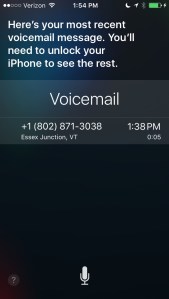
| If you inquire about your voicemail while your iDevice is locked, Siri will still tell you if you have or don’t have any unseen voicemail messages. However, regardless if you have multiple unseen voicemails, while your phone is locked Siri will only tell you about your most recent message. |
|
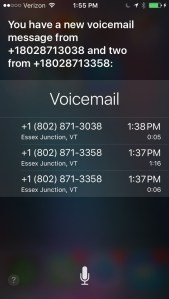
| If you ask Siri to check your voicemail while your phone is unlocked, she’ll tell you about all your unseen voicemail messages |
|
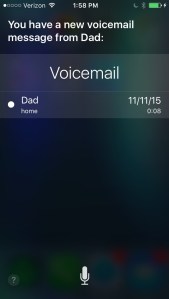
| Asking Siri if you have any voicemail will have her report on both new and old voicemail. She also refers to voicemail that you’ve seen as “new”. |
|
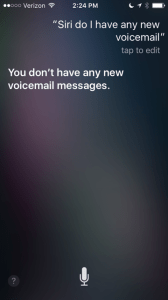
| Asking Siri if you have any voicemail will have her report on both new and old voicemail. If you’re just interested in new voicemail messages, ask, “Siri, do I have any new voicemail messages?” |
|
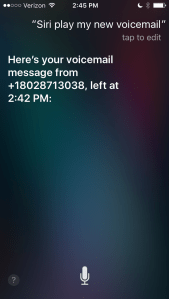
| To actual have Siri play your voicemail, you’ll need to specify that you’d like her to do so. Try asking, “Siri, play my new voicemail.” Note that with this command, Siri will play your most recent voicemail message. |
|
Checking Your Messages in VoiceOver with Siri
| Checking your messages via Siri is similar to checking voicemail. Simply ask Siri, “Siri, do I have any messages?” |
|
| One important difference between checking messages and checking voicemail is that Siri will not tell you about old messages. Also, after Siri checks your new messages, they are no longer new! |
|
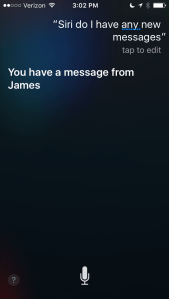
| You can ask Siri if you have new messages from a specific contact |
|
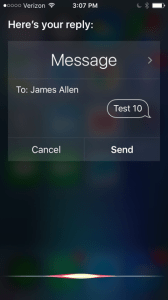
| After Siri reads you a new message (or series of messages), she’ll ask if you’d like to reply and let you dictate a response. |
|
| Siri let you review your dictated message before sending. |
|


 Vermont DBVI Training