
Windows File Names
| Windows gives users 255 characters for a file name. However, the file name doesn’t just include the title you give your folder or file, it includes each subdirectory along the path and the filename! | ||
| Example of a Windows File path: C:\Documents and Settings\%username%\Desktop\folder1\folder2\file.docx | ||
| In some cases you may encounter errors related to over-sized file names | ||
| Example errors: | ||
| Destination Path Too Long | Occurs when moving files into a new folder where the new path length would be greater than the Windows character limit |  |
| File Name Too Long | Occurs when a new file name would result in the file path being greater than the Windows character limit | 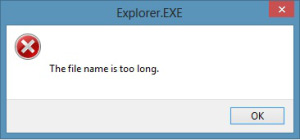 |
| Source Path Too Long | Occurs when you attempt to import files which would result in a file path that is greater than the Windows character limit | 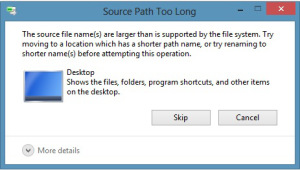 |
Issues from Related to Over-sized File Names
| You’ll get a Windows error message like the ones above. |
| In some cases, you won’t get the Windows error. Instead you’ll get a message that just says “Cannot Copy”. |
| In some cases, your files simply won’t open or might cause errors when opening or closing. |
| Another issue is that the file context menu(right click) won’t have as many options as other folders with acceptable file paths. |
How do you fix it?
| Shorten folder names or your file name! |
| Consider your use of folder layers – eliminating a folder layer entirely would save characters! |
| Be cognizant about where your saving files. You might think saving on the Desktop will save space but the actual file path to the desktop will be C:\Documents and Settings\%username%\Desktop or C:\Users\%username%\Desktop depending on your version of Windows. |
References
Suresh, V. (2013, August 08). How to fix ‘file path too long’ error while copying, deleting or opening files, without using third party applications. Retrieved from vimalsuresh website: http://vimalsuresh.com/2013/08/08/how-to-fix-file-path-too-long-error-while-copying-deleting-or-opening-files-without-using-third-party-applications/
 Vermont DBVI Training