
Review of Zoom
How to turn Zoom on/off
| Navigation in Settings |
| Accessibility Shortcut |
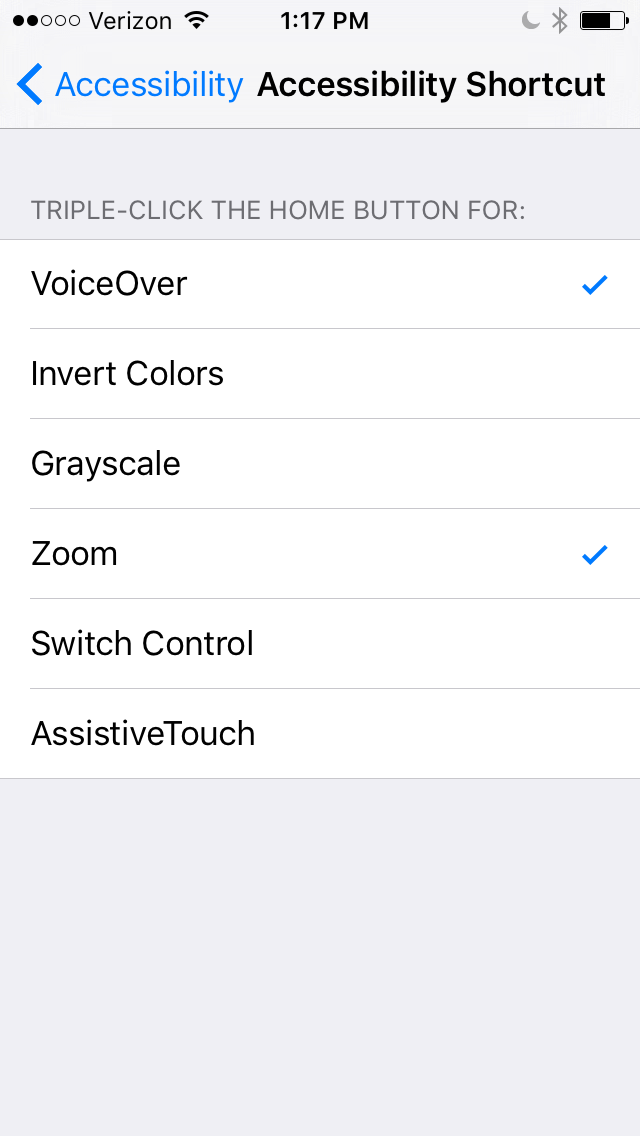 |
| Can Siri Turn On Zoom? |
Gestures for zoom
| Three finger double tap | Zoom in and out |
| Three fingers | Move around the screen |
| Three finger double tap & drag | Change zoom level |
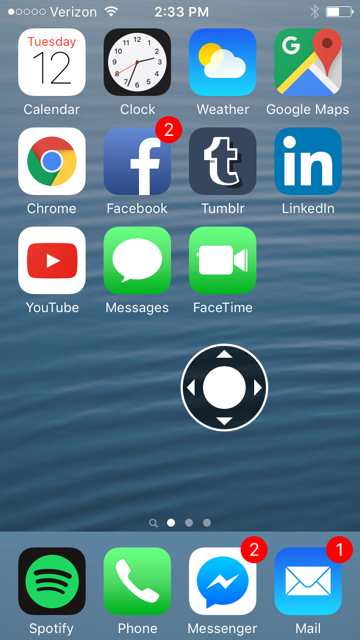
Using the Zoom Controller
| Single tap controller | Show Zoom menu |
| Double tap controller | Zoom in and out |
| Drag controller when zoomed | Pan zoomed content |
| Drag controller when not zoomed* | Move Zoom controller |
| *When zoomed, hold to move controller | |
| Panning zoomed content: | Moving Zoom controller: |
 |
 |
Follow Focus
| The Zoom will center around the part of the screen that has focus |
Smart Typing
| When enabled, automatically switches to Window Zoom when a keyboard appears and moves the window so that the text is zoomed, but the keyboard is not. |
Show Controller
| The Zoom Controller allows users to move the focus around and access zoom settings in other applications. |
| Allows quick access to zoom controls |
Idle Visibility
| When the Zoom Controller is not in use, this setting controls how visible it is. |
Zoom Region
| Full Screen Zoom | The entire screen is zoomed in to the desired magnification |
| Window Zoom | The user is given a small window of magnification that acts as a lens |
Zoom Filter
| Allows users to put filters on the iPad display | |
| Options include: None, Inverted, Grayscale, Grayscale Inverted, and Low Light | |
 Invert Colors  Grayscale  Inverted Grayscake |
|
Maximum Zoom Level
| 1.2x to 15x |
Other Interface Options
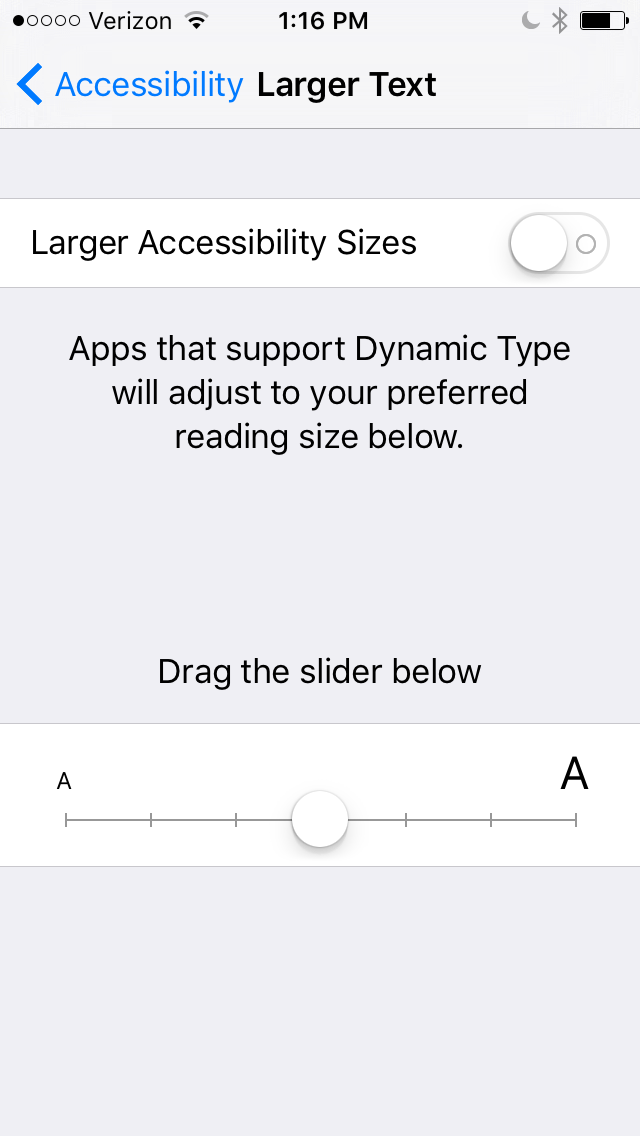
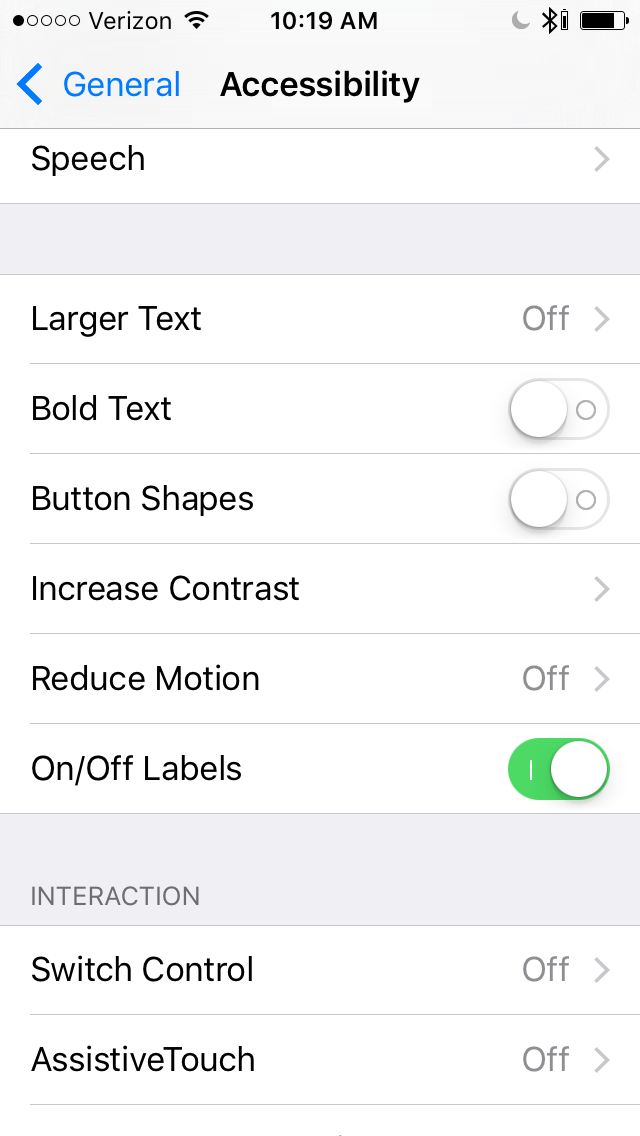
Larger Text
| Apps that support Dynamic Type will adjust to our preferred reading size |
 |
Bold Text
| OS and app font will appear bolded |
| Normal iOS font(Right) and bolded iOS font(Left): |
  |
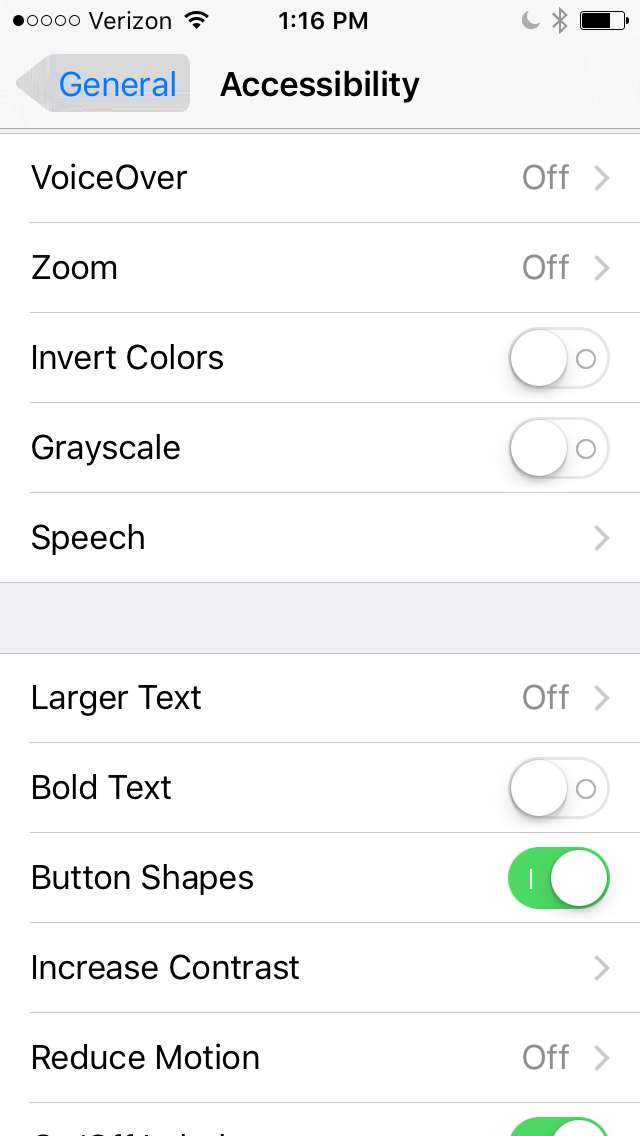
Button Shapes
| Adds outline to iOS buttons |
 |
Increase Contrast
| Reduce Transparency |
| Darken Colors |
| Reduce White Point |
Reduce Motion
| Reduce the motion of the user interface, including the parallax effects of icons. |
On/ Off Labels
| Adds letters within on/ off labels to make it easier to identify their state. |
 |
 Vermont DBVI Training