ZoomText

ZoomText logo

Basics

Enable/ Disable ZoomText | Caps Lock + Ctrl + Enter

Switch to ZoomText | Caps Lock + Ctrl + U

Magnifier Tab

Adjusting Magnification

Increase Zoom  | Caps Lock + Up Arrow

Decrease Zoom | Caps Lock + Down Arrow

Zoom to 1x Toggle | Caps Lock + Enter

Mouse Wheel Zoom | Caps Lock + Roll Mouse Wheel

Using Enhancements

Toggle Color Enhancements | Caps Lock + C

Toggle Pointer Enhancements | Caps Lock + P

Toggle Cursor Enhancements | Caps Lock + R

Toggle Focus Enhancements | Caps Lock + F

Reader Tab

Voice

Toggle Speech Output | Caps Lock + Alt + Enter

Faster Speech | Caps Lock + Alt + Up

Slower Speech | Caps Lock + Alt + Down

Keyboard

Toggle Typing Echo Mode (none, characters, words, or characters and words) | Caps Lock + Alt + K

Mouse

Toggle Mouse Echo Mode: Caps Lock + Alt + M

AppReader

Start AppReader |  Caps Lock + Alt + A

Pause Reading |  Ctrl

Continue Reading |  Enter

End AppReader Mode | Escape

JAWS and Windows File Explorer

File Explorer Basics

File Explorer is the tool you use to look at files and folders on your computer. It helps you open things you’ve saved, organize your documents, and move files from one place to another. If you think of your computer like a filing cabinet, File Explorer is how you open the drawers and see what’s inside.

Opening File Explorer

You can open File Explorer by pressing Enter on a shortcut from the desktop, taskbar, or start menu. You can also open File Explorer using the Windows search bar. Just press the windows button, type “File Explorer”, and press Enter.

Another quick way to open File Explorer is by pressing Windows + E.

Open a New File Explorer Window | Windows + E

Note: Every time you press Windows + E, you’ll open a new File Explorer window. This can be useful if you want to move files between folders.

If you need a refresher on how to launch programs using JAWS, check out JAWS and Windows Basics.

Navigating File Explorer

Several different sections make up File Explorer. You can move between these sections by pressing the Tab key. As you tab, JAWS will announce where you are. Once you’re in a section, you can use the arrow keys to move around inside it.

Move Between Parts of File Explorer | Tab

Move Within Parts of File Explorer | Arrow Keys

There are a lot of parts to File Explorer, and that can feel overwhelming at first. You might find yourself pressing Tab again and again, not sure where you are or what you’re looking for. That’s okay. The two most important sections of file explorer for JAWS users are the Tree View and the List View. These sections are what we use to choose, save, open, and move files.

List View

The List View is where your files and folders live. When you open File Explorer, this is often where your focus lands first. It’s where you’ll see the contents of whatever folder you’re currently in.

You can move through the list using the Up and Down Arrow keys. JAWS will read each file or folder as you land on it.

This is where you’ll select files to open, save, attach, or upload. If you press Enter on a folder in List View, you’ll go inside it. If you press Enter on a file, it will open in the program it’s associated with.

Move Between Files and Folders | Up and Down Arrow

Open Files and Folders | Enter

Delete Files and Folders | Delete

Go Back a Level (escape out of a folder) | Alt + Left Arrow

Tree View

The Tree View is the part of File Explorer that shows you the structure of your computer. It’s where you choose which folder you want to look inside.

You can use the Up and Down Arrow keys to move through the list. When you hear a folder you want, press Enter to open it. This will change what you see in the List View, but it won’t automatically move your focus there. To view the files inside the folder, press Tab to move from Tree View into List View.

Some of the most common folders you’ll see in Tree View are:

Documents | This is where many programs save files by default

Downloads | Files you download from the internet usually end up here

Desktop | This shows the files and shortcuts on your computer’s desktop

Tree View gives you control over where you’re working.

First Letter Navigation

When you’re in a long list of items it can take a while to move through everything one arrow key at a time. That’s where first letter navigation comes in.

If you know the name of what you’re looking for, just press the first letter of that name. JAWS will jump you to the first item that starts with that letter.

For example, if you’re in List View and looking for a file called Resume, press the letter R on your keyboard. If there’s a file that starts with R, JAWS will land on it. Pressing R again will jump to the next item that starts with R, if there is one.

This also works in Tree View. Let’s say you’re trying to get to the Downloads folder. Just press D while you’re in Tree View. JAWS will move you to the first folder starting with D. Pressing D again moves to the next D-named folder.

First letter navigation is a quick way to move through long lists without a lot of extra arrowing.

Moving Between List View and Tree View

Once you’ve picked a folder in Tree View, you’ll often want to move into List View to see what’s inside. You can do this by pressing Tab. If you go too far, keep pressing Tab. File Explorer loops back around eventually. You can also press Shift + Tab to go backward if needed.

Move to the Next Section | Tab

Move Backward | Shift + Tab

JAWS will announce when you’re in “List View” or “Tree View,” so listen for those words to help you stay oriented.

Tree View and List View are usually right next to each other in File Explorer. That means once you’ve found one, you’re only a press or two away from the other. You can press Tab to move forward, or Shift + Tab to go backward. JAWS will announce when you’re in “List View” or “Tree View,” so listen for those words to help you stay oriented.

The File Explorer Dialog

We see the File Explorer dialog when we save, open, attach, or upload a file. It shows up anytime the computer needs us to pick a file or choose where to put one. This dialog is how your computer asks you, “What file are you talking about?” or “Where should I put this?”

The File Explorer dialog looks and behaves a lot like the regular File Explorer window. It has the same basic parts, like the Tree View and the List View. But it also includes some extra elements, depending on what you’re doing. For example, the dialog gives you a place to type in a file name and a Save button to confirm your choice when saving a file. When opening a file, you look for one that already exists to open it.

Saving a File

When you save a file, the computer wants to know two things: Where do you want to save it? and what do you want to name it?

When the Save dialog opens, your focus is usually in the file name box. You’ll hear something like “Document1” or “Untitled.” That’s a placeholder name the computer picked for you. If you start typing, that name will go away and be replaced with what you type. If you want to keep part of it, use your arrow keys to move around first.

The place where your file will be saved is already picked for you. This is called the default folder. What folder gets picked depends on the program you’re using. For example, Microsoft Word usually saves to your Documents folder. But other programs might choose Downloads, Desktop, or somewhere else.

If you’re okay with where the file is going, all you have to do is type a name and press Enter. That’s it! Your file will be saved in that spot.

If you want to save the file in a different folder, press Shift + Tab until you get to the folder list. This is called the Tree View. Use the arrow keys to choose a different folder, like Desktop or Downloads, and press Enter. Then press Tab to get back to the file name box.

Opening a File

When you open a file, the computer needs to know where that file is saved. Your focus usually starts in the file name box. If you know the exact name of the file, you can type it in and press Enter to open it. But most of the time, you’ll want to go look for the file.

To find a file, press Shift + Tab until you reach the folder list (Tree View). Use the arrow keys to move through the list and press Enter on the folder you want.

After you press Enter on a folder, press Tab to move to the list of files (List View). Use the arrow keys to go through the list. When you find your file, press Enter to open it.

Attaching and Uploading Files

Sometimes you’ll be asked to “attach” or “upload” a file. Both of these actions use a File Explorer dialog to let you choose something from your computer.

Attaching usually happens in email programs, like when you’re adding a file to a message. You might hear something like “Attach File” or “Add Attachment.” After choosing that option, a File Explorer dialog will open so you can pick the file you want.

Uploading happens when you’re putting something onto a website. For example, lets say you are filling out a form online. You hit tab, and JAWS says “Upload Resume”. When you hit enter on that button, a File Explorer dialog opens where you can choose your file.

Some websites let you upload to a specific location or let you upload an entire folder. For example, in Google Drive, you can choose to upload a single file or an entire folder from your computer. The File Explorer dialog helps you make that choice.

In any of these cases, use Tree View and List View to find your file, just like you would when opening or saving. Then press Enter on the file you want, and it will be attached or uploaded.

Creating Folders

Folders help you organize files, and subfolders let you go deeper. Subfolders are just what we call folders that are inside of a folder. You can create a new folder in File Explorer by pressing Ctrl + Shift + N.

Create a new folder | Ctrl + Shift + N

After you press this command, JAWS will announce “New folder edit.” That means your new folder is ready to be named. Just type a name and press Enter.

Moving Files and Folders

The easiest way to move files or folders from one place to another is by using cut, copy and paste.

Copy | Ctrl + C
Paste | Ctrl + V
Cut | Ctrl + X
Undo | Ctrl + Z

Start by finding the file or folder you want to move. Press Ctrl + C to copy it. Then, use Tree View or List View to get to the folder where you want the item to go. Once you’re there, press Ctrl + V to paste it.

When you’re new to file explorer, it is safer to use copy and paste. Once you can confirm that your files are where you want them, you can delete the original file. This adds a little extra safety while you’re learning.

Once you’re feeling confident, you can speed things up by using cut instead of copy. Cutting removes the file from its original location when you paste it somewhere else.

If you make a mistake, press Ctrl + Z to undo your last action.

This process can involve a lot of moving around and feel labor intensive. To make the process easier, consider opening extra file explorer windows (Windows + E). Using Alt + Tab, we can move between different file explorer windows. Each window can be open to a different file explorer location. This can help make moving files easier!

JAWS and Word Basics

Getting Started in Word

Opening Microsoft Word

Open Microsoft Word by pressing Enter on a shortcut from the desktop, taskbar, or start menu. You can also open Word using the Windows search bar in the start menu.

If you need a reminder on how to launch programs with JAWS, check out JAWS and Windows Basics.

Writing in Microsoft Word

When you type in Microsoft Word, JAWS will read aloud what you’re writing. This helps you make sure everything sounds right as you go. You don’t need to do anything special to start writing. Just open a blank document in Word, and JAWS will say “Edit.” That means your cursor is ready for you to begin typing.

Understanding Keyboard Echo

Keyboard echo controls what JAWS says when you type. You can choose to hear:

  • Each character as you type (for example, JAWS says “H” when you type the letter H)
  • Each word when you press the spacebar,
  • Both characters and words, or
  • Nothing at all (JAWS stays silent while you type).

To change the keyboard echo setting at any time, press:

  • Insert + 2 (on the number row, not the numpad).
  • Each time you press it, JAWS will cycle through the different options and announce them.

For example, it might say:

  • “Keyboard echo: characters”
  • (Press again) “Keyboard echo: words”
  • (Press again) “Keyboard echo: characters and words”

Choose the setting that works best for you. If JAWS isn’t saying anything when you type, it might be set to “None.” Press Insert + 2 to turn the echo back on.

Reading in Microsoft Word

Once you’ve written something—or opened a document—JAWS gives you several ways to read what’s on the screen. You can read small pieces of text or full sections depending on what you need. Here are the most useful reading commands:

Read by Character | Left or Right Arrow

Read by Word | Insert + Left or Right Arrow

Read by Sentence | Alt + Down Arrow

Read by Line | Up or Down Arrow

Read by Paragraph | Ctrl + Up or Down Arrow

Read All | Insert + Down Arrow

Pause Reading | Ctrl

Selecting and Editing Text

Selecting text means choosing part of your document so you can do something with it—like delete it, copy it, move it, or change the formatting. You can select as little as one letter or as much as your whole document. Here’s how to do it using just the keyboard.

Selecting Text

Move your cursor to where you want to start.

Hold down the Shift key and use the arrow keys to select:

Shift + Right Arrow | Selects one character to the right

Shift + Left Arrow | Selects one character to the left

Ctrl + Shift + Right or Left Arrow | Selects one word at a time

Shift + Down or Up Arrow | Selects by line

Ctrl + Shift + Down or Up Arrow | Selects by paragraph

Ctrl + A | Select all

JAWS will announce what is being selected as you move.

Read current selection | Insert + Shift + Down Arrow

This command tells JAWS to read exactly what you’ve selected. It’s useful when you want to double-check that you’ve got the right text before cutting or copying.

Cut, Copy, and Paste

Once you’ve selected text, you can:

Copy | Ctrl + C

Cut | Ctrl + X

Paste | Ctrl + V

JAWS may confirm actions like “Copied to clipboard” or “Pasted,” depending on your verbosity settings.

Clipboard History

Windows includes a Clipboard Manager that lets you access multiple copied items.

Open Clipboard History | Windows key + V

This opens a list of everything you’ve recently copied. You can use the arrow keys to browse the list and press Enter to paste any item into your document.

Note: Clipboard history must be enabled the first time you use it. When prompted, press Enter to turn it on.

Formatting Text

When you’re writing in Word, you can make your text stand out by changing its formatting. This includes things like bold, italics, underline, and font size. All of these commands can be done entirely from the keyboard and work well with JAWS.

Apply Basic Formatting

Bold selected text | Ctrl + B

Italicize selected text | Ctrl + I

Underline selected text | Ctrl + U

You can use these commands before you start typing, or select text you’ve already written and apply them afterward.

JAWS will usually say “Bold on” or “Italics off” to let you know what formatting is active.

Change Font Size

Increase font size | Ctrl + Shift + Right Angle Bracket (>)

Decrease font size | Ctrl + Shift + Left Angle Bracket (<)

You’ll need to hold down Ctrl + Shift and press the greater than or less than keys. On most keyboards, these are the same keys as the period and comma.

JAWS may not announce the size as it changes, but you can check it in the font dialog (see below).

Exploring More Options in the Font Dialog

If you want more control over formatting, you can open the full Font dialog box. This lets you adjust:

  • Font name (like Calibri or Arial)
  • Font size
  • Font style (bold, italic, etc.)
  • Font color
  • Underline style
  • Effects like strikethrough or small caps

Open Font dialog | Ctrl + D

Once the dialog opens:

  • Use Tab to move through each setting
  • Use Arrow keys to choose an option in a list
  • Press Spacebar to check or uncheck a checkbox
  • Press Enter when you’re done to apply your changes
  • JAWS will read each setting and let you know where you are in the dialog.

Navigating a Document

As you start working with longer documents, you may want a faster way to move through your writing. These two commands can help:

Move to the top of the document | Ctrl + Home
Move to the bottom of the document | Ctrl + End

JAWS will announce when you move, and you can begin reading from that point using any of your usual reading commands. These shortcuts are great when you want to quickly check something at the top or add a final thought at the bottom.

Spell Check and Proofing

Microsoft Word includes a built-in spell checker that works well with JAWS. It helps you find and fix misspelled words and other basic writing issues.

Run spell check | F7

When spell check opens, focus moves to the first issue found. JAWS will read the error and the suggested correction.

Use the following keys to interact:

Tab | Move between buttons like Ignore, Change, or Add

Enter | Choose the selected button

Esc | Close spell check if you need to stop

Down arrow | If multiple suggestions are available, use this to pick one

Review the misspelled word again | Insert + F7

Use Insert + F7 if you want JAWS to repeat the word it found, without moving on to the next suggestion.

JAWS will read each suggestion as you move. After you make a correction, Word will move to the next issue automatically.

Saving Your Work

Saving your work is one of the most important skills in Word. Here are the basics:

Save the current document | Ctrl + S

Save As (choose a new name or location) | F12

Open an existing document | Ctrl + O

Create a new blank document | Ctrl + N

Print the current document | Ctrl + P

When you use commands like Save As or Open, Word brings up a File Explorer dialog. This window is where you choose what folder to use and what to name your file.

You’ll hear things like:

  • Tree view, which lists common folders like Desktop, Documents, and Downloads
  • List view, which shows the files and folders inside whichever folder you selected
  • And File name, where your typing focus starts when the dialog opens

Navigating this dialog is part of learning to use File Explorer, which we’ll cover in a future lesson.

For now, just know that you can press Tab to move around, Enter to confirm, and Esc to cancel if you get stuck.

ZoomText 2024 – Magnifier

Magnification

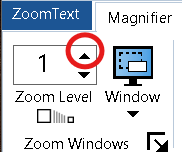
Using the mouse pointer, you can increase magnification by clicking on the up arrow to the right of your current zoom level and to the left of the window icon.

You can zoom out by clicking the down arrow to the right of your current zoom level and to the left of the window icon.

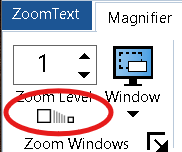
You can toggle between your current zoom level and 1x (no magnification) by clicking the Zoom Level button beneath your current zoom level.

Keyboard Commands for Magnification

Zoom in | Caps Lock + Up Arrow

Zoom out | Caps Lock + Down Arrow

1x Toggle | Caps Lock + Enter

Enhancement

You can toggle color enhancements on and off by clicking the top half of the color split button.

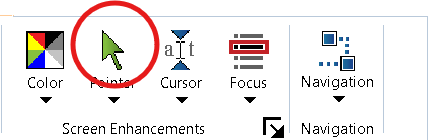
You can toggle pointer enhancements on and off by clicking the top half of the pointer split button.

You can toggle cursor enhancements on and off by clicking the top half of the cursor split button.

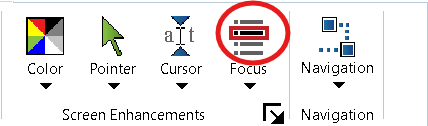
You can toggle focus enhancements on and off by clicking the top half of the focus split button.

Keyboard Commands for Enhancements

Toggle color enhancements | Caps Lock + C

Toggle pointer enhancements | Caps Lock + P

Toggle cursor enhancements | Caps Lock + R

Toggle focus enhancements | Caps Lock + F

JAWS and Outlook Basics

Outlook Basics

Opening Outlook

Open Outlook by pressing enter on a shortcut from the desktop, taskbar, or start menu. You can also open Outlook by using the Windows search from the start menu. If you need a reminder on opening programs, check out JAWS and Windows Basics.

The Outlook Inbox

When Outlook opens, your focus should be in your inbox. JAWS calls this “List View”. Here you can:

  1. Find and read new mail
  2. Delete mail
  3. Sort mail into folders

Navigate your inbox | Up arrow or down arrow

Open an email | Enter

Delete an email | Delete

Concept: The Context Menu

Throughout Windows, we will use context menus to perform certain tasks. The command Shift + F10 works anywhere in Windows. The context menu will have different options depending on where it opens from.

For example, I will find a different context menu on a desktop icon than I will on an Outlook message. We will learn more about what we can do with context menus in Outlook in the future.

More message option | Shift + F10

Navigate the context menu | Up and down arrow

Initiate a context menu option or open a sub menu | Enter or space bar

Reading Your Mail

When you open an email message, the message will open into another window. Your focus will move to this new window at the top of the body of the message.

Close an open email | Escape or Alt + F4

Read by line | Up and down arrow

Read by character | Left and right arrow

Read by word | Insert + left or right arrow

Concept: Read All

The reading commands above are great for reading smaller amounts of text. When you want to read large amounts of text, use the read all command. The read all command reads everything in a document from your current point of focus to the end.

Read all | Insert + down arrow

Pause read all | Ctrl

Concept: Interrupting Speech

JAWS speaks a lot. Sometimes we all need to take an ear break. Use the Ctrl key to interrupt JAWS. Pressing Ctrl while JAWS is speaking will make JAWS stop speaking. This does not turn of speech or mute JAWS.

Interrupt speech | Ctrl

Concept: Dealing with Outlook Windows

Reading and writing emails create other Outlook windows. I went over how to close these windows above. You can also leave windows open by using Alt + Tab to move through your Outlook windows and Outlook inbox.

Sending Out Mail

Getting and reading mail is only one part of Outlook. You are also going to want to send out your own messages. Below are commands for sending, replying, and forwarding messages. These commands work while in the Inbox and in a message. If you close a mail message without sending it, it will ask you if you want to save the message as a draft. Use enter and tab to choose between yes, no, and cancel.

Move through message sections | Tab and Shift + Tab

Send email | Alt + S or Ctrl + enter

Concept: Sending New Mail

The Ctrl + N command will open a new blank outgoing message and will work anywhere in Outlook. The new message opens as a new window. This window is a lot like a received message window but with fillable fields.

Sending out a new blank message involves:

  1. Choosing recipients
  2. Adding a subject line
  3. Composing a message

When the message window opens, your focus will be in the to field where you can type the recipient’s email. Once you’ve entered their email, use Tab to move to the subject line and type the subject of the email. Once that is complete, you can Tab again to reach the body of the email where you can write your message.

New email | Ctrl + N

Concept: Replying to Mail

Replying to a message is another way to send mail. You can use Ctrl + R to reply to received messages. A reply message goes to the original sender. The subject line will read “RE:” followed by the original subject line. The original message will appear at the bottom of the body of the reply email.

You can also reply all to a message. Reply all (Ctrl + Shift + R) will address the response to any other recipients of the message. Reply all will also include recipients who were carbon copied (CC’d) on the message. Carbon copy sends a message to someone without making them the main recipient of the message.

Reply to email | Ctrl + R

Reply all to email | Ctrl + Shift + R

Concept: Forwarding Mail

You can use Ctrl + F on a received email to forward it. When forwarding, the message window will open with your focus in the to field. Here you will add your recipient’s email. Then, using tab, you will move to the body of the email where you can add your message. The subject line will be “FW:” and then the subject line of the received email message.

Forward email | Ctrl + F

Moving to Other Folders

Use the “Go to Folder” dialog in Outlook to move to other folders. Use Ctrl + Y to open the go to folder dialog.

Concept: The Go to Folder Dialog

The go to folder dialog is an easy way to switch between folders and accounts in Outlook. The dialog opens as a window. Use the up and down arrows to move through the options in the dialog. As you move through the dialog, you will hear different folders (ex. inbox, drafts, sent mail, etc.). You can also find other email accounts in Outlook using the go to folder dialog. Pressing enter on a folder will close the dialog and open that folder, moving your focus into the list view. All mail folders operate in the exact same way as your inbox.

Some items in the go to folder dialog will have the expand and collapse function. JAWS will announce if the items open or closed. Use left arrow on open items to close them. Use right arrow on closed items to open them.

Open the go to folder dialog | Ctrl + Y

Navigate go to folder dialog | Up and down arrow

Expand closed items | Right arrow

Collapse open items | Left arrow

Go to a folder | Enter

Close the go to folder dialog | Escape

Moving Messages to Other Folders

Once you’ve created folders to organize your mail, you can move messages using the context menu.

Open the context menu on a message | Shift + F10
Navigate options | Up and down arrow
Choose Move > Other Folder | M, then Enter
Choose a destination folder | Up and down arrow, then Enter

You can also press Ctrl + Shift + V to open the Move Items dialog directly and skip the context menu.

Creating New Folders

To create new folders for organizing your email:

  1. Press Ctrl + Shift + E to open the “Create New Folder” dialog.
  2. Type a name for your new folder (e.g., “Work Emails” or “To Follow Up”).
  3. Choose where to place the folder by tabbing to the location list.
  4. Use the arrow keys to choose where the new folder should go—like under Inbox or Drafts.
  5. Press Enter to create the folder.

You can now move messages into this folder the same way as above.

JAWS and Windows Basics 

Navigating Windows

The Windows Desktop

The Windows desktop is a space for programs, folders, and files. Users can use the desktop to open programs and files. Many programs and folders will have shortcuts on the desktop. 

Move to the desktop | Windows + D or Windows + M

Move through desktop icons | Up arrow, down arrow, left arrow, and right arrow

Open a desktop icon |  Enter

Concept: First Letter Navigation on the Desktop

Moving around the windows desktop with the arrow keys can be a challenge. First key navigation can make moving around the desktop easier. Press the first letter of a desktop icon’s title and your JAWS focus will move to it.

For example, if I press “M” on my desktop, my focus will move to Microsoft Edge. Press the same key again and your JAWS focus will move to other icons with the same first letter in their title. For example, on my desktop, if I press “G” I will first move to Google Docs. If I press G again (with my focus on Google Docs), I will move to Google Sheets, and if I press it again I will move to Google Slides.

The Start Menu

We will learn about the Windows start menu next. Users launch searches from the start menu. Users can also find applications and recent documents on the start menu.

Open and move to the start menu | Windows Button

Concept: Windows Search

Pressing the windows button will open the start menu. Your JAWS focus moves to the Windows search bar when the menu opens. The Windows search allows users to type searches for programs, files, folders, and more. The Windows search can be a convenient way to launch applications.

For example, if I press the windows button and then type “W-O-R-D” and press enter, Microsoft Word will open. 

The Taskbar

The taskbar is another location we can use to launch programs. Users can add program shortcuts to the taskbar for easy access. We will learn to add shortcuts to the taskbar in the future.

Move to the taskbar | Windows + T

Move between taskbar icons | Left and right arrow

Open taskbar icon | Enter

Concept: Taskbar Shortcuts

Taskbar shortcut keys are an easy way to open programs. Launch pinned programs on the taskbar by pressing the windows key and number keys. Starting from the left, the first icon’s command key is Windows button + 1. The next icon’s key command is Windows + 2, and the command keys continue in this way. You can use these taskbar shortcut keys when JAWS is off.

The System Tray

You can find volume, Wi-Fi settings, time and date, and more in the system tray.

Concept: The Select a System Tray Icon Dialog

The system tray dialog makes it easy to move through options in the system tray.

Open the select a system tray icon dialog | Insert + F11

Navigate the system tray dialog | Up and down arrow

Right click on a system tray icon | Enter

Left click on a system tray icon | Press tab twice to move to the left click button and press enter

Announce time | Insert + F12

Working with Applications

Applications Windows

Next we will learn some basics for working with programs. We will learn about working with specific programs in future lessons.

Close application | Alt + F4

Hear window title | Insert + T

Concept: Alt + Tabbing to Switch Between Applications

You can use Alt + Tab to move between two or more program windows. Alt + Tab is a special key command. We press Alt and Tab in different ways to move in different ways. Pressing Alt and Tab at the same time will move you between the last window you visited and the current window. This works great when you only have two windows open.

When you have more than two windows open, we will use Alt + Tab in a different way. Holding down the Alt key and pressing tab will move you between all open windows. When you find the window you want, let go of Alt.

For example, I have Word, JAWS, and Outlook open on my computer. My focus is on Word. I want to move to Outlook. I press Alt + Tab and hold down Alt. I hear JAWS announced. Continuing to keep Alt pressed, I press Tab again. I hear “Outlook” announced. I release Alt and I find that I am now in Outlook.

Switch between Application windows | Alt + Tab

The JAWS Window

The JAWS window is the application window for JAWS. The JAWS window allows users to:

  1. Update settings
  2. Get training and technical help
  3. Check for JAWS updates

We will learn more about the JAWS window later on.

Move to JAWS | Insert + J

Shutdown JAWS | Insert + F4

Web Browsing with JAWS

Navigation

Move to the address and search bar | Ctrl + L

Concept: Address and Search Bar | When your focus is in the address and search bar, you can type either a web address or keywords for an online search. If the web address you put in is incorrect, your browser will simply do a web search for it. To submit your web address or search, press enter.  

Back Button | Alt + Left Arrow

Concept: The Back Button | The back button will take you one step back in your web browsing journey. 

Next Element | Down Arrow

Previous Element | Up Arrow

Concept: Moving by Element | This is the most fundamental way to move using JAWS when working with the web. Each arrow key press will move you to the next HTML element on the page. HTML Elements includes everything on a web page. Headings, links, form controls, images, tables, lists, and more.

Headings

Concept: Headings | Headings are titles of pages or sections. Headings have different levels which correspond to the page’s structure. 

Next Heading | H

Previous Heading | Shift + H

Headings List | Insert + F6

Links

Concept: Links | Links or “Hyperlinks” contain a reference to another web address. When you click or press enter on a link, you are usually taken to a new webpage. In JAWS, we can move through unvisited links (ones we haven’t opened yet) and visited links (ones we’ve already opened).

Next Unvisited Link | U

Previous Univisited Link | Shift + U

Next Visited Link | V

Previous Visited Link | Shift + V

Links List | Insert + F7

Form Controls

Concept: Form Controls | Form controls refer to a group of related elements on the web. These elements include text fields, radio buttons, dropdown menus, buttons, and check boxes. All these elements take input from the user. You can use quick keys and element lists for each type of element

Form Controls List | Insert + F5

Next Edit Field | E

Previous Edit Field | Shift + E

Next Button | B

Previous Button | Shift + B

Concept: Forms Mode | When using a web page, JAWS is in one of two modes: virtual PC cursor or forms mode. Forms mode allows JAWS users to input text into edit boxes. In forms mode, typing a key enters its letter into the edit field. When we are using the virtual PC cursor, key presses are usually done for navigation. For example, if I am in forms mode and press the H key, JAWS will print an H into the edit field. If I am using the virtual PC cursor and I press H, I move to the next heading. JAWS informs the user of which mode they are in with beep sounds. The higher beep indicates that forms mode is on. The lower beep indicates that forms mode is off. 

Concept : Tabbing | A common way to move throughout other applications with JAWS is to use the Tab key. Tabbing isn’t quite as central to web browsing. JAWS users can tab whenever they would like on the web, but a tab on the web moves the user to the next link or form field. This can make tabbing a somewhat confusing method for navigating a web page.

Tabbing is useful on the web when filling in a form. When you enter the top of a form, you will go into forms mode. When you’re ready to move to the next control in the form, the easiest way to do so is via the tab key. This keeps JAWS in forms mode as we navigate, so we don’t have to worry about switching modes.

JAWS Find

Concept: The JAWS Find | JAWS find is a search that JAWS users can use to find text in a window. It searches the text against all elements on the page. It can also be a powerful workaround for inaccessible web content.

JAWS Find |Ctrl + F 

Next JAWS Find Result | F3

Previous JAWS Find Result | Shift + F3

Tables

Concept: Tables | Tables show information in rows and columns, which can be tricky with JAWS because screen readers read in a straight line. JAWS has several commands that can make tables easier to understand.

Next Table | T

Prior Table | Shift + T

List Tables | Insert + Ctrl + T 

Next Cell | Ctrl + Alt + Right Arrow

Prior Cell | Ctrl + Alt + Left Arrow

Cell Above | Ctrl + Alt + Up Arrow

Cell Below | Ctrl + Alt + Down Arrow

First Cell | Ctrl + Alt + HOME

Last Cell | Ctrl + Alt + END

Virtual HTML Features List

Concept: Virtual HTML Features List | We have learned to navigate by a handful of element types on the web. JAWS has even more options for navigating by types of elements. The Virtual HTML Features list will show a list of other element lists that the user can bring up. This includes graphics, lists, frames, divs, and more. Most of these other element lists aren’t as useful as the ones we’ve already covered (headings, links, form fields, etc.). Some of these element lists can help on certain webpages or for specific tasks.

Virtual HTML Feature List | Insert + F3 

Starting JAWS

Basic JAWS Commands

Move between sections | Tab / Shift + Tab

Move within a section | Arrow keys

Switch to JAWS | Insert + J

Open Start Menu | Windows Button

Move to Desktop | Windows + D OR Windows + M

Switch between open applications | Alt + Tab (Note – hold down alt and press tab to switch to the next application. When your desired application in announced, let go of Alt)

Hear title of current application | Insert + T

Close current application | Alt + F4

Open System Tray Dialog | Insert + F11

Google Drive and JAWS

Google Drive can be used as a web-based application by navigating to drive.google.com. You can also download Google Drive as a desktop application for windows. You can find the download link at https://dl.google.com/drive-file-stream/GoogleDriveSetup.exe. There are differences between the web-based application and the desktop app, so using both is typically the best approach.

Google Drive for Windows

After you download and install the Google Drive for Windows app, you will find Google Drive in File Explorer. It will appear in the tree view of File Explorer. This means you can simply use File Explorer to manage you cloud-based files. However, there are some limitations. For starters, if you’re using the free version of Google Drive, you will not be able to use File Explorer to access shared documents from other users. If you are a G-Suite user, shared files will show up in File Explorer. Further, providing permissions and sharing links to files will all need to be done via the web-based Google Drive.

Google Drive on the Web

Below we’re going to focus on some basics for Google Drive to start with. If you’re looking for a complete list of commands for Google Drive, you can find one at https://support.google.com/drive/answer/2563044?hl=en.

To begin with Google Drive, we’ll focus on two areas: the navigation pane and the items view. If we think of Google Drive in-terms of File Explorer, the navigation pane would be similar to the tree view and the items view is similar to the items list.

Go to navigation panel | g then f

Go to items view | g then l

Switch between grid and list in items view | v

Note that as JAWS users, you’ll want to keep the view on list view. This will put all your files in a list that is easy to up and down arrow through. With the grid view, you would have to navigate with up, down, left, and right.

You can navigate the items view and the navigational panel with the up and down arrows. To open a file or a folder, simply press enter.

Finding Shared Google Documents

  1. Navigate to drive.google.com and sign-in to the account that the document was shared with.
  2. Use g then f to switch to the navigation panel. Then use down arrow to navigate to Shared with Me. Press enter.
  3. Your focus will move to the list view. Your shared documents are in the order they were received, with the newest documents at the top of the file. When you find your document, press enter.
  4. Your document will open in Google Documents. Use Alt + F to open the file menu.
  5. Use the down arrow to navigate the file menu until you find download. Another file menu will open with different file types. Choose the file type you want (ex. Word doc, PDF, etc.) and press enter.
  6. The file will now show up in your Downloads folder in File Explorer.

JAWS and Outlook

Checking Your Mail

When Outlook opens, you should be in the list view of your inbox.

Navigate your inbox | up arrow or down arrow

Open an email | enter

Delete an email | delete

Read an email | insert + down arrow

Close an open email | escape or Alt + F4

Sending and Replying

The commands for sending, replying, and forwarding work from an open message or from the inbox.

New email | Ctrl + N

Reply to email | Ctrl + R

Forward email | Ctrl + F

Reply all to email | Ctrl + Shift + R

Send email | Alt + S or Ctrl + enter

Switching and Sorting Mailboxes

Open the Go to Folder dialog | Ctrl + Y

Move a message | Use shift + F10 to open the context menu on the message you’d like to move. Then, navigate the context menu with up and down arrow. When you find move, press enter. A dialog will open that is very similar to the Go to Folder dialog. Use this dialog (via the arrow keys), you can select the folder you want the message to be moved to by pressing enter.

Dealing with Attachments

When you receive an email with an attached file, JAWS will typically announce “attachment” when you navigate to the message in your Inbox. You can then follow the steps below to retrieve the file:

  1. Open the email with the attachment by pressing enter.
  2. Your focus will be put at the top of the message. Use Shift + Tab to move your focus into the attachment area. With messages that involve multiple attachments, use left and right arrow to cycle through the attached files.
  3. You can open the attachment by pressing enter. You may also use Alt + Down Arrow to expand a list of other actions, including saving the file to your computer.

Now, for the alternative situation: you want to send an email with an attachment. You can do so by following the steps below:

  1. Open an outgoing email (new message, forward, reply, etc.).
  2. Press Alt, this will move your focus to the Ribbon.
  3. Use the left and right arrow keys to cycle through Ribbon Tabs until you find the Insert tab.
  4. Press tab until you arrive at the Attachments button and press enter.
  5. A dropdown menu will open. Using up and down arrow, you can move through the menu options. This menu is primarily populated by your recent documents. If the file you want to send is in this list, press enter and you’ll be returned to your outgoing email message (Skip to step 8).
  6. If the file you want to send is not among them, at the bottom of the menu, you’ll find a Browse this PC option. Press enter.
  7. The File Explorer dialog will open. Use this dialog the same way you would to open a saved document in Word.
  8. Once you’ve selected the attachment you want, you’ll be returned to your outgoing message. Now you simply need to address the email and add your message, then you can send.

To add multiple attachments, repeat the process outlined above again. Be careful to consider that Outlook has maximum file sizes for outgoing emails, so some files will either need to be sent separately or transmitted via a different medium.

Fixing Your View

The default View settings in Outlook are not optimized for a JAWS user. Changing your settings is easy, but it is also a process you may need to repeat in the future when adding new accounts or when the settings get inexplicably set back to default.

Turning Off Automatic Group By

  1. From Outlook, use alt to move into the Ribbon.
  2. In the Ribbon, use the left and right arrow keys to switch to the View tab.
  3. In the View tab of the Ribbon, use tab to move to Current View and press enter.
  4. A dropdown menu will open. Use the arrow keys to move to View Settings… and press enter. Note: you can accomplish steps 1 through 4 using the alt path: alt, then V, then Y, then 1, and then V.
  5. The Advanced View Settings dialog will open. Use tab to move to Group by and press enter.
  6. The Group By dialog will open. Use space bar to toggle off Automatically Sort according to arrangement.
  7. Use tab to move to the OK button and press enter.
  8. The Group By dialog will close and return your focus to the Advanced View Settings dialog. Tab to the OK button and press enter.
  9. The date categories in your inbox (ex. yesterday, Thursday, Last week, etc.) should now be gone.

Turning Off the Reading Pane

  1. From Outlook, use alt to move into the Ribbon.
  2. In the Ribbon, use the left and right arrow keys to switch to the View tab.
  3. Use tab to move through the View tab options until you arrive at Layout. Press enter.
  4. A dropdown menu will open. Use the arrow keys to move to Reading Pane and press enter.
  5. Another dropdown menu will open. Use the arrow to move to the Off option and press enter. Note: You can achieve steps 1 through 5 with the following alt path: alt, then V, then Y, then 2, then R, and then O.