Gestures in VoiceOver for iOS

How to Turn On/Off VoiceOver

Navigating in Settings
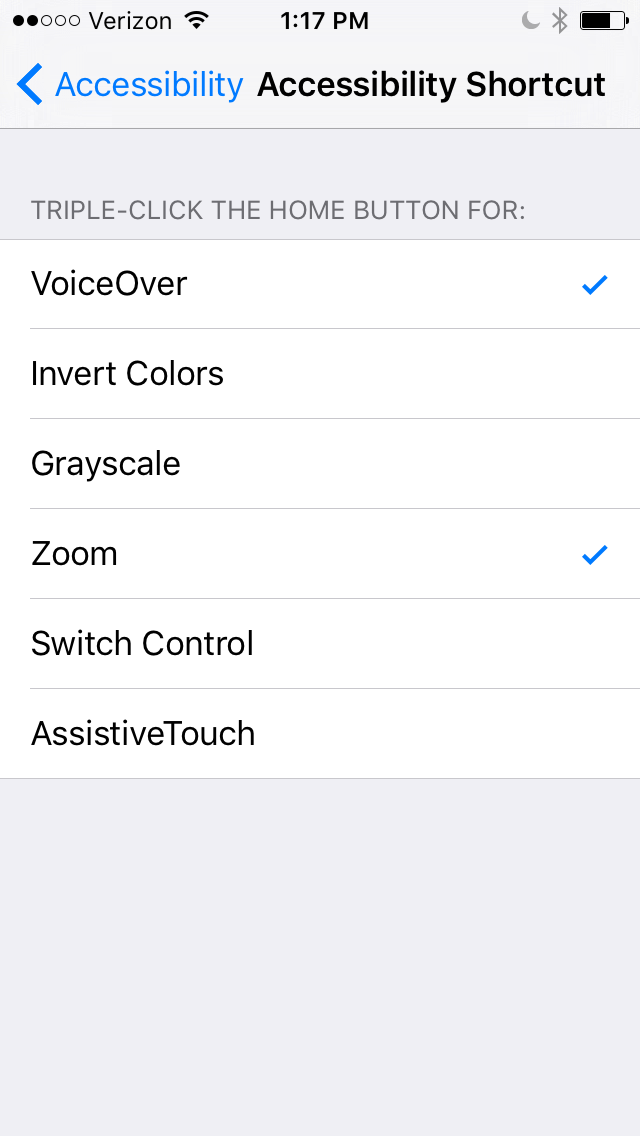
Accessibility Shortcuts
Turning on VoiceOver with Siri

Gestures in VoiceOver

Single Finger Gestures

Tap Speak item
Flick right or left Select next or previous item
Flick up or down The effect varies depending on the Rotor Control setting

Two Finger Gestures

Two-finger swipe up Read all from the top of the screen
Two-finger swipe down Read all from the current position
Two-finger tap Stop or resume speaking
Two-finger scrub Move two fingers back and forth three times quickly (making a “z”) to dismiss an alert or go back to the previous screen.

Three Finger Gestures

Three-finger swipe up or down Scroll one page at a time
Three-finger swipe right or left Go to the next or previous page (on the Home screen, for example)
Three-finger tap Speak additional information, such as position within a list or whether text is selected

Four Finger Gestures

Four-finger tap at top of screen Select the first item on the page
Four-finger tap at bottom of screen Select the last item on the page

Activation Gestures

Double-tap Activate the selected item
Split-tap As an alternative to selecting an item and double-tapping to activate it, touch and hold an item with one finger, then tap the screen with another.
Double-tap and hold (1 second) + standard gesture Use a standard gesture. The double-tap and hold gesture tells iPod touch to interpret the next gesture as standard. For example, you can double-tap and hold, and then without lifting your finger, drag your finger to slide a switch.
Two-finger double-tap Play or pause in Music, Videos, Voice Memos, or Photos. Take a photo in Camera. Start or pause recording in Camera or Voice Memos. Start or stop the stopwatch.
Two-finger double-tap and hold Change an item’s label to make it easier to find
Two-finger triple-tap Open the Item Chooser
Three-finger double-tap Mute or unmute VoiceOver

The Rotor

Rotate two fingers on the iPad screen to “turn” the dial and choose items on the rotor. Flick up and down to use the selected item.
The effect of the rotor depends on what you’re doing. For example, if you’re reading text in an email, you can use the rotor to switch between hearing text spoken word-by-word, character-by-character, or line-by-line when you flick up or down. When you browse a webpage, use the rotor to choose whether you hear text word-by-word or character-by-character, hear just the headers, hear just the links (all of them, visited links, or links not yet visited), hear form elements, or hear descriptions of images. You can use the rotor setting to hear all of the text, or to jump from one element of a certain type (such as headers or links) to another.
Handwriting mode to enter passwords

VoiceOver Training Resources

YouTube Video Series

Hadley School for the Blind iFocus Series How-to video series on a range of topics on accessibility for iOS.
Carroll Center for the Blind Apple Product Video Tutorials Video tutorials on accessibility features in iOS.

AppleVis

Community-powered site for vision-impaired users of Apple’s iOS devices
iDevice Primer 101: Basic Terminology Primer 101 explains the terms you’ll need to know to start using VoiceOver in iOS.
iDevice Primer 102: iOS Gestures Primer 102 explains the finger gestures you’ll need to learn to navigate your iDevice using VoiceOver.
iDevice Primer 103: What is the rotor for and how do I use it? Primer 103 explains the rotor, what it is, and how to use it.
iDevice Primer 104: Basic Usage and Troubleshooting Primer 104 explains a range of other issues related to using an iDevice for someone who is blind or visually impaired.
iDevice Primer 106: Using iTunes Primer 106 is a guide to navigating iTunes using VoiceOver in iOS.
iDevice Primer 107: How do I find apps? Primer 107 is a guide to finding and downloading apps using VoiceOver in iOS.

Mac File Recovery / Online File Storage / Linux Accessibility

Mac File Recovery

Catacombae HFSExplorer Download Web page with information on and download for HFSExplorer, “…an application that can read Mac-formatted hard disks and disk images.”
How to Restore Files From a Time Machine Backup on Windows A How-To Geek article detailing how to go about recovering Time Machine backups via HFSExplorer on Windows
Opening Time-Machine OSX backup files on Windows 7? A Super User message board about how to open Time Machine backup files in Windows 7
View Time Machine backup drive on Windows 7 A Ask Different message board about how to view Time Machine backups in Windows 7

Online File Storage

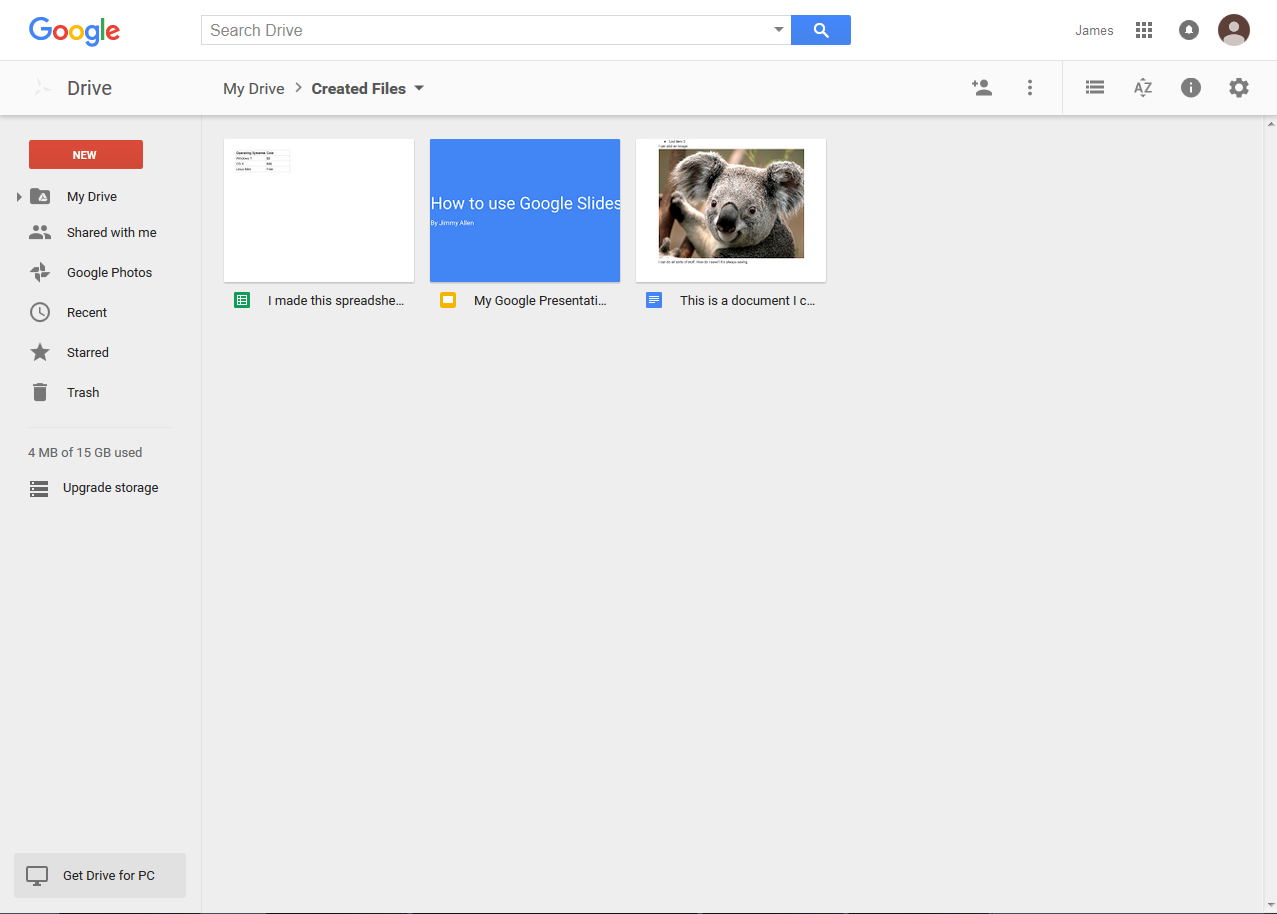
Google Drive

Account Creation To create a Google Drive account, you need to create an account with Google. If you have a Gmail account, you already have a Google Drive account.
Storage Specifications 15 GB of free storage
Features Upload and download documents from anywhere across a range of devices including desktops, laptops, tablets, and smart phones.

Share documents with other users via email or by shareable URL.

Create and manage permissions for files and folders.

Use Google Docs to create and edit documents.

Use Google Sheets to create and edit spreadsheets and tables.

Use Google Slides to create and edit presentations.

For Windows and Mac users, there is a desktop application for Google Drive that makes moving files from local storage to your Google Drive easier and seamless. Unfortunately, this application is not available for Linux users. However, there is software out there that allows Linux users some functionality with Google Drive1.

Screen Shot Thumbnail of screen shot of Google Drive

Evernote

Account Creation To create an Evernote account, you simply need an email address.
Storage Specifications 60 MB of free storage per month
Features Create notes and attach your files. This allows you to give a little bit more information about a specific file than just the name.

Easy drag and drop files from your computer into Evernote.

Organize notes into notebooks (as opposed to files into folders).

Tag notes to make them easily searchable.

Share files and notes via email, social networking, and shareable links.

Screen Shot Thumbnail of screen shot of Evernote

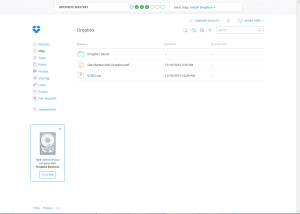
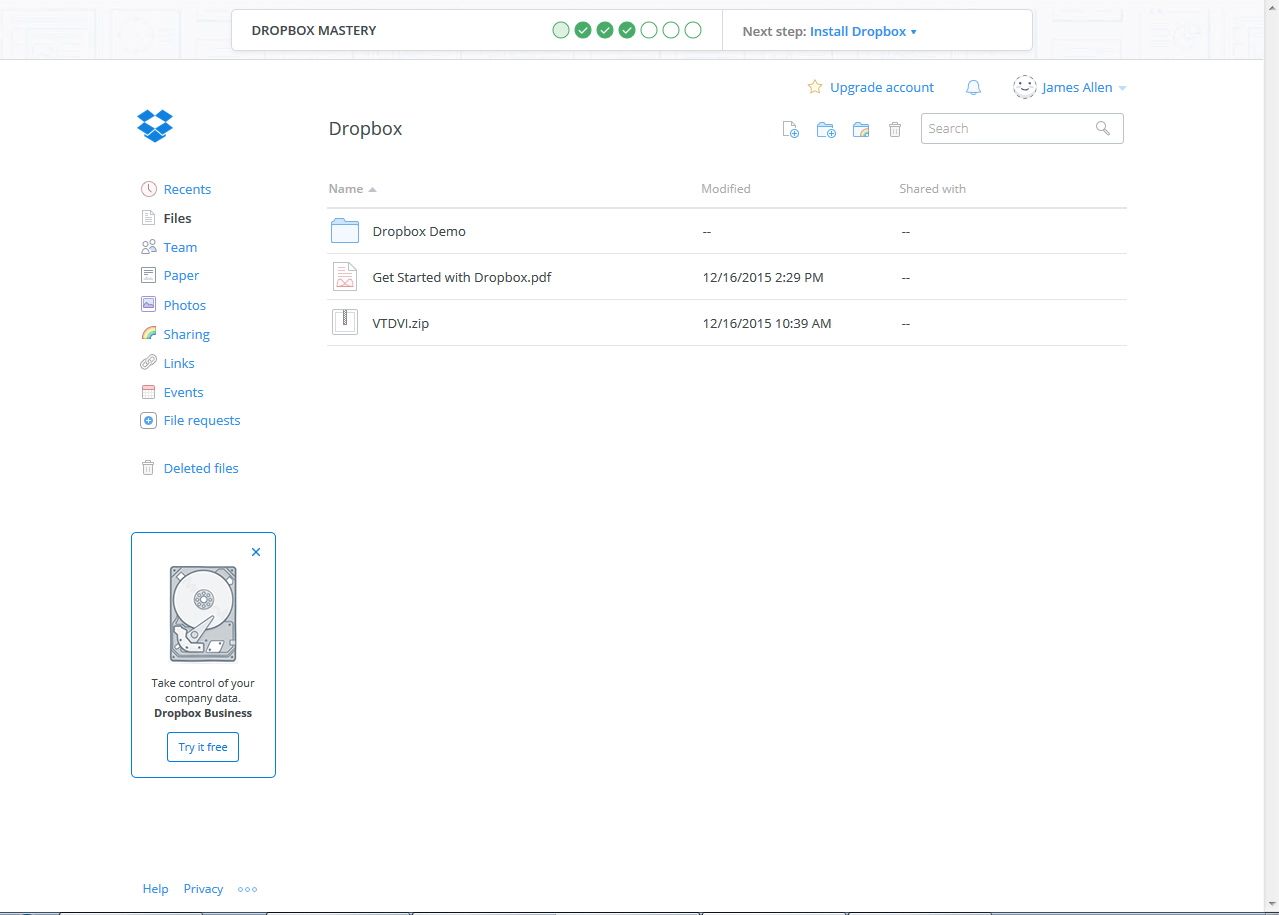
Dropbox

Account Creation To create a Dropbox account, you simply need an email address.
Storage Specifications 2 GB of free storage
Features Upload and share documents

Organize files in folders

Share documents via email

Download the Dropbox desktop application, available on Windows, Mac, and Linux.

Screen Shot  Thumbnail of screen shot of Dropbox

Linux Accessibility

Built-in Accessibility: Linux Mint

Mouse Locator In System Settings under Mouse and Touchpad, enable the option Show position of pointer when the control key is pressed When the Ctrl key is pressed, visual emphasis will radiate out from behind the mouse, making it easy to locate
High Contrast In System Settings under Accessibility, enable High Contrast mode A change in the contrast of the screen may make the mouse pointer easier to locate and track
Alternative to Mouseposé? Unfortunately, no. Looked on Alternative To and Linux App Finder and asked Boinx Software (makers of Mouseposé) and WinCycle.

GNOME Accessibility for Vision

GNU Network Object Model Environment (Gnome)
Part of the GNU Project
Free software – part of the Open Source movement
“GNOME is a Windows-like desktop system that works on UNIX and UNIX-like systems and is not dependent on any one window manager.”2
Screen Reader The Orca screen reader speaks the user interface
Braille Display Orca works with refreshable braille displays to read the screen in Braille
Adjustable Contrast Adjust the contrast of your screen to make windows and buttons more or less vivid
Increase Text Size Change the font size of system text to make it more reable
Screen Magnification Turn on built-in zoom settings to magnify an area of the screen.
Cursor Enhancements Enable the keyboard cursor to blink to make it easier to locate

References

1. Hoffman, C. (2014, September 21). An official google drive for linux is here, sort of — maybe this is all we’ll ever get. Retrieved from How-To Geek website: http://www.howtogeek.com/196635/an-official-google-drive-for-linux-is-here-sort-of-maybe-this-is-all-well-ever-get/
2. Webopedia. (2016). Gnome. Retrieved from Webopedia website: http://www.webopedia.com/TERM/G/GNOME.html