Beginning Microsoft Outlook with JAWS

Outlook

What is Outlook? Part of the Microsoft Office Suite of productivity software, Outlook is a desktop mail client. What does that mean? It is a program on your computer that will let you access and manage your email. A mail client is also referred to as en email reader or a Mail User Agent (MUA).
What’s the difference between Gmail or Yahoo and Outlook? Gmail and Yahoo are web-based email services. This means that you can only access your email via these services when you have an internet connection. Outlook however, can be used without a connection to the internet, though some functionality (like sending and receiving messages) requires the internet. Further, while Gmail and Yahoo are email services, Outlook is an email client. This means that you can take theoretically any email service (including Yahoo and Gmail) and access and manage it via Outlook.
Why would I use Outlook? Outlook has many advantages in general over web-based email services. Outlook stores your emails of your computer, so you can access your correspondence without an internet connection. Further, with local storage, you have more control of your emails for file storage and backup. Further, Outlook doesn’t just offer email, but also has features for managing your calendar, contacts, tasks, and notes. Lastly, while web-based email services will allow you to use some hotkeys and may work reasonably well with JAWS, Outlook has a huge amount of hotkey functionality and works extremely well with JAWS.
What about using Outlook for mobile? Microsoft recently launched the Outlook app for iOS. It works very well with VoiceOver. It has been nominated for the iOS 2016 App Hall of Fame for the website AppleVis, a community-powered website for blind and low-vision users of Apple’s range of Mac computers, the iPhone, iPad, iPod Touch, Apple TV and Apple Watch. Further, if you have a service like Gmail or Yahoo, you can always go to these websites to manage your email on top of using Outlook. You should see all changes in Outlook represented on the web interface and visa-versa.

Navigating Outlook

Move around within the folder pane or through messages in the inbox, outbox or folders by item. Arrow keys
Move to the first/last item on the screen in the folder pane or inbox, outbox, and folders. Page up/ Page down
Move between the Outlook window, the smaller panes in the Folder Pane, the Reading Pane, and the sections in the To-Do Bar, and show the access keys in the Outlook ribbon. F6
Move between the Outlook window, the smaller panes in the Folder Pane, the Reading Pane, and the sections in the To-Do Bar. Tab
Switch to Inbox. Ctrl+Shift+I
Switch to Outbox. Ctrl+Shift+O
Go To Folder Ctrl + Y
Switch to Mail. Ctrl+1
Switch to Calendar. Ctrl+2
Switch to Contacts. Ctrl+3
Switch to Tasks. Ctrl+4
Switch to Notes. Ctrl+5

In-session Exercise

Open your inbox and look at your most recent emails. Spend some time navigating through the emails.

Sending and Receiving Emails

Open Message Enter
Reply to message Ctrl + R
Reply all to a message Shift + Ctrl + R
Forward message Ctrl + F
Delete message Del
Create new message Ctrl + N
Move to the Subject Field Alt + U
Send Message Alt + S / Ctrl + Enter

Adaptive Apps for iOS

Books, Reading, Radio, and Podcasts Apps

App Developer Cost Other Costs Subcategories Description Available on iPhone? Available on iPad? Notes
AccessWorld American Foundation for the Blind Free “This is the official app of the American Foundation for the Blind’s online publication AccessWorld.” Yes Yes
Audible Audible, Inc Free App is free, but audio books require purchase. Audio Books “Enjoy books and great stories? Download Audiobooks from Audible, an Amazon company, to listen to books on the go.” Yes Yes
BARD Mobile Library of Congress Free In Vermont, you must be a patron of the Vermont Department of Libaries Special Services Unit to get BARD access Audio Books; Braille “The BARD Mobile app provides access to braille and talking books directly from the NLS Braille and Audio Reading Download (BARD). BARD contains nearly 70,000 books, magazines, and music scores in audio and braille formats, with new selections added daily.” Yes Yes
Kindle AMZN Mobile LLC Free App is free and offers some free content, but most audio books and eBooks require purchase. Audio Books; eBooks “Carry a library in your pocket anywhere you go. Get access to more than 3,000,000 books and audiobooks including over 850,000 Kindle exclusive titles. With the Kindle app, get your book once and read it on any device and share across your family’s devices. Choose from a wide selection of books, newspapers, and magazines from Wall Street Journal, New York Times to Reader’s Digest.” Yes Yes
Learning Ally Learning Ally Free “Learning Ally is for people with an eligible print disability.” Paid membership options for parents and adults. Educator memberships also available. Education; Audio Books The Learning Ally app allows students, teacherts, parents, and others to access audio books and audio textbooks. Yes Yes
NOOK Barnes & Noble Free App is free and offers some free content, but most audio books and eBooks require purchase. Books, Reading, Radio, and Podcasts “NOOK free book reading app for your iPad, iPhone and iPod touch! This free reader app has a library of over 4 million free best-selling eBooks, magazines, comics, and kids’ books in every genre including fiction, romance, business, sci-fi, mystery, and more – including 1 million FREE titles” Yes Yes
OverDrive OverDrive, Inc. Free Must have affiliation with a public library. Audio Books; eBooks “Borrow eBooks, audiobooks, and streaming video from your library using OverDrive on your iPad, iPhone, and iPod touch. More than 30,000 libraries worldwide offer titles from OverDrive, so download the app and find your next book today!” Yes Yes
Voice Dream Voice Dream LLC $14.99 “Read with your ears! Voice Dream Reader is a widely acclaimed desktop-class app that reads articles, documents and books out loud. With advanced text-to-speech and a highly configurable visual layout, it can be tailored to suit every reading style and level. “ Yes Yes

Global Positioning System (GPS) Apps

App Developer Cost Other Costs Subcategories Description Available on iPhone? Available on iPad? Notes
Blind Square MIPsoft $29.99 “BlindSquare uses GPS and the compass to locate you. It then gathers information about the surrounding environment from FourSquare. BlindSquare has some unique algorithms to decide what information is the most relevant and then speaks it to you with high quality speech synthesis.” Yes Yes To get the most out of this app, you’ll need mobile data.

Identification

App Developer Cost Other Costs Subcategories Description Available on iPhone? Available on iPad? Notes
Aipoly Vision Aipoly Free Item Identification; Color Identification “Aipoly is an object and color recogniser that helps the blind, visually impaired, and color blind understand their surroundings. Simply point your phone at the object of interest and press the large toggle button at the bottom of the screen to turn on the artificial intelligence.” Yes Yes This app offers identification in real time and does not require the user to take a picture.
Be My Eyes Be My Eyes Free “Be the eyes for a blind person in need of help remotely through a live video connection if you are sighted or be assisted by the network of sighted users if you are blind.” Yes Yes
CamFind CamFind Inc. Free Item Identification; Color Identification “CamFind, the world’s first successful mobile visual search engine, allows you to search for anything from your mobile phone just by taking a picture.” Yes No
Color Identifier GreenGar Studios $4.99 There is a free version of the app – Color ID Free Color Identification “Color Identifier uses the camera on your iPhone or iPod touch to speak the names of colors in real-time. It’s a new Augmented Reality app for discovering the names of the colors around you!” Yes No
ColorVisor visorApps $4.99 Color Identification “The ColorVisor detects colors in your environment by using the cameras that are built into your device. Additionally, the app supports scanning colors in photos and images.” Yes No
Digit-Eyes Digital Miracles, L.L.C. $9.99 There is a free version of the app – Digit-Eyes Lite Barcode Reader “Make your own QR code labels on the Digit-Eyes website and print them on inexpensive address labels. These barcoded labels may contain text that VoiceOver reads aloud or they can be used to record audio on your iPhone or iPad that is played back whenever the bar code is scanned. “ Yes No
EyeNote Bureau of Engraving and Printing Free Money Identification “EyeNote is a mobile device application to denominate Federal Reserve Notes (U.S. paper currency) as an aid for the blind or visually impaired to increase accessibility. Users can have the denomination of a note scanned and communicated back to the user. “ Yes No
Light Detector EveryWare Technologies $1.99 Light Identificiation “Have you ever listened to light? With Light Detector, now you can! Light Detector transforms any natural or artificial light source it encounters into sound. Light Detector is easy to use! Just run the application and point your iPhone camera in any direction. You will hear a higher or lower sound depending on the intensity of the light.” Yes No
LookTel Money Reader IPPLEX $9.99 Money Identification “LookTel Money Reader instantly recognizes currency and speaks the denomination, enabling people experiencing visual impairments or blindness to quickly and easily identify and count bills. Point the camera of your iOS device at a bill and the application will tell you the denomination in real-time. Twenty one currencies are supported: the US Dollar, Australian Dollar, Bahraini Dinar, Brazilian Real, Belarusian Ruble, British Pound, Canadian Dollar, Euro, Hungarian Forint, Israeli Shekel, Indian Rupee, Japanese Yen, Kuwaiti Dinar, Mexican Peso, New Zealand Dollar, Polish Zloty, Russian Ruble, Saudi Arabian Riyal, Singapore Dollar, and United Arab Emirates Dirham.” Yes No
LookTel Recognizer IPPLEX $9.99 Barcode Reader “LookTel Recognizer allows those persons having visual impairments or blindness to identify cans, packages, ID or credit cards, DVDs, and similar items. Customers can store images of objects in a library or database, and then point the iPhone’s camera at an object and the phone will recognize and describe the item instantly. A barcode scanner is included to provide additional labeling help. “ Yes No
Talking Goggles Sparkling Apps BV $0.99 Item Identification “Talking Goggles can recognize images and speaks out what it finds. Recognizes almost any image within seconds. Logos, landmarks, books, products, artwork, text and more.. Shows the description of the image and speaks it out to you.” Yes No
TapTapSee CamFind Inc. Free Item Identification; Color Identification “TapTapSee is designed to help the blind and visually impaired identify objects they encounter in their daily lives. Simply double tap the screen to take a photo of anything, at any angle, and hear the app speak the identification back to you (Note: Spoken identification requires VoiceOver to be turned on).” Yes No

Magnification

Over 40 HD Magnifier TLA Investments LLC $1.99 “Now you can use your iPad to read the fine print see what you’ve been missing!” No Yes
Over 40 Magnifying Glass with Flashlight TLA Investments LLC $1.99 “Flashlight and Magnifier in One App.” Yes No
VisionAssist Slinkyware $3.99 VisionAssist provides, “…magnification and enable you to improve the contrast to help you read or see what you want to read.” Yes Yes

Occular Character Recognition (OCR) Apps

knfbReaderSencotec nv$99.99  “The KNFB Reader converts printed text into high quality speech to provide accurate, fast, and efficient access to both single and multiple page documents with the tap of a button on the iPhone.”YesYes  PrizmoCreaceed SPRL$9.99  “Prizmo is a universal photo-based scanner app that lets you scan and recognize text documents, business cards, and images, and then export them as PDF/Text, vCard, or JPEG/PNG. Prizmo relies on state-of-the-art technologies, like a highly accurate OCR, real-time page detection, and beautiful image cleanup. Using iCloud, you can even shoot the picture on your iPhone, and finish editing on your iPad or Mac. All of this in an elegant and intuitive user experience.”YesYes  TextGrabber + TranslatorABBYY$4.99Translation is available as a separate in-app purchaseOccular Character Recognition (OCR) “TextGrabber + Translator easily and quickly scans, translates and saves your chosen text from virtually any printed material. Simply take a picture of the text and immediately edit, hear it spoken aloud via VoiceOver, translate it into 90 languages, send your text by SMS or e-mail, or share it quickly on Facebook, Twitter or Evernote.”YesYes

MAGic: Magnification, View, and Enhancement

MAGic Magnification Logo

MAGic Screen Magnification Software

MAGic is a magnification application developed by Freedom Scientific
Also referred to as a “Large Print Program”
MAGic also has screen reader functionality

Time to Launch MAGic

You can launch MAGic like any other program on your computer.
You can also use the keyboard combination Ctrl + Alt + M to launch MAGic.
You can also set-up MAGic to start automatically when your computer is turned on. Just open the MAGic Main Menu by clicking the MAGic symbol in the top left corner of the MAGic user interface. Select File from the dropdown menu and then select Preferences from the File sub-menu. This will open the Preferences Dialog window, select the topmost item, the Automatically start MAGic button. This will open a Start MAGic options dialog. Here you can choose to have MAGic start automatically in the logon screen, when Windows start after a specific user logs on, or just come on anytime Windows is started.

The MAGic Key

As we magnify our screen, we start seeing smaller portion of our screen larger. At 2x magnification, a MAGic user is only seeing 1/2 of the computer screen at any given position. This makes using our computers a little more difficult, especially navigating toolbars and menus. For this reason, users of magnification software depend heavily on keyboard shortcuts as they are more efficient than navigating a visual interface.
While there are keyboard shortcuts for Windows and the majority of the programs that run in Windows, MAGic has its own set of keyboard shortcuts.
MAGic shortcuts typically involve some combination of keys, modifier keys (Shift, Ctrl, and Alt, and the MAGic Key.
The MAGic Key is used in the majority of MAGic keyboard shortcuts. By default, the MAGic Key is set to Caps Lock. However, users can change what key is their MAGic key.
To change your MAGic key, open the MAGic Main Menu by clicking the Magic symbol in the top left corner of the MAGic user interface. This will open a dropdown menu where you can choose Tools to open the Tools sub-menu. In this menu, choose Keyboard Manager. This will open the Keyboard Manager Dialog. In the lower left corner of this window, you’ll see a button that reads “MAGic Key”. Click this button to open the MAGic Key dialog. In this window, choose which key you’d like to use from Caps Lock, Extended Insert, Num Pad Insert, Either Insert, or Scroll Lock.

MAGic User Interface: Visual

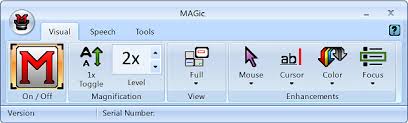
The MAGic User Interface (UI) (the window that opens when we launch the MAGic program) is rectangular toolbar organized into three tabs: Visual, Speech, and Tools. In this lesson, we’re going to focus on the Visual tab which will let us zoom in and out, change our window type, add color enhancements, and more.

MAGic User Interface showing the visual tab
The MAGic user interface showing the Visual tab

On / Off

Using MAGic, we’ll make changes to how our computer screen appears. We will use the program to zoom in, change color schemes, and change the appearance of our mouse pointer, text cursor, and screen focus.
There will be times when you need to turn off your magnification and enhancements. For example, you might be sharing your computer with someone who doesn’t use MAGic. To quickly turn MAGic off, you can simply click the leftmost item on the MAGic UI. To turn your magnification and enhancements back on, simply click the On / Off button again.

MAGic On and Off Button
The MAGic On / Off Button
Use the keyboard combination MAGic Key + Delete to turn MAGic On and Off.

Magnification

The Magnification section of the Visual tab is where we’ll use MAGic to zoom in and out.

Magnification
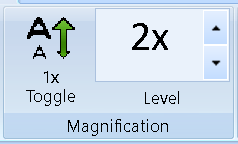
MAGic Magnification section
The 1x Toggle button is a quick way to enable and disable our magnification. There will be many instances when we need to quickly zoom out to navigate the desktop or understand the layout of an application or document. The 1x Toggle button will change our level of zoom to 1x (no magnification). Press the button again and you’ll be returned to the level of magnification you had previously been working with.
The keyboard shortcut to toggle 1x Magnification is MAGic Key + Shift + Delete
To the right of the 1x Toggle button, you’ll find your current level of magnification. Use the up and down errors to increase and decrease magnification.
You can also increase magnification with the keyboard shortcuts MAGic Key + Num Pad Plus and decrease magnification with MAGic Key + Num Pad Minus.

View

The view section of the MAGic Visual tab allows user to choose their magnified screen layout.

Screen shot of The View section of the MAGic Visual Tab
The View section of the MAGic Visual Tab
Full View Full view means that the entire screen is magnified using the magnification set by the Default Magnification Level option. Full view is the default1.
Split View Split view divides the screen into two halves, one magnified, one unmagnified 1.
Overlay Overlay view opens a magnified rectangular window positioned in the screen corner. As you move the mouse, that area of the screen appears in the magnified window 1.
Lens Lens view opens a magnified rectangular window that follows mouse movement 1.
Dynamic Lens Dynamic Lens view functions like Lens View except it follows keyboard commands instead of mouse movement 1.
MAGic supports users with multiple monitors. If you have more than one monitor, simply connect it to your system and configure settings by opening the View dropdown menu and selecting Multi-Monitor.

Enhancements

The enhancements section lets users make several changes to the appearance of their computer. Mouse enhancements will change the appearance of the mouse pointer, cursor enhancements will change the appearance of the text cursor, color enhancements will change the colors of the overall screen, and focus enhancements will give visual cues to help track the computer’s focus.

Screen shot of the enhancements section of the MAGic Visual tab
The enhancements section uses a feature called “Split Buttons”. Visually, each enhancement appears as a rectangular button with an icon and a name. For example, the Mouse split button has the image of a mouse pointer over the word “Mouse”. The button is divided into two horizontally. Clicking the top half of the button will toggle the feature on and off. Clicking the bottom half of the button will open a drop-down menu for settings. When a feature is enabled, the background of the split button will change from the light blue of the MAGic UI to orange.

Mouse Enhancements

Using mouse enhancements, we can change the appearance of the mouse pointer to make is more visible and easier to locate.
 Screen shot of the mouse icon in MAGic
Customize the pointer by changing the body color, border color, size, and transparency.
Users can choose different mouse settings for working with magnified and unmagnified screen.
Add a mouse enhancement to help you locate the pointer. Mouse enhancement styles include crosshairs, ovals, boxes, and scopes. Choose the color, transparency, thickness, length, and height of your mouse enhancement. Further, you can choose when the enhancement will display – only when the mouse is moving, only when the mouse is stationary, only when the MAGic key is pressed, or always.
You can use the keyboard shortcut MAGic Key + F4 to toggle mouse enhancements on and off.

Cursor Enhancements

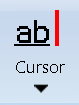
Using cursor enhancement, augment the appearance of the cursor to make it more visible and easier to track
 Screen shot of Cursor icon from MAGic
Change the color of the text cursor. Note – if you want to change the thickness or the blink rate of the text cursor, you’ll need to make that change in your Windows settings.
Add a cursor enhancement to help find the exact location of the cursor. Choose from enhancement styles including oval, triangle, box, and line. Customize the color, transparency, thickness, length, and height of the cursor enhancement. Further, you can choose when the enhancement will display – only when the cursor is moving, only when the cursor is stationary, only when the MAGic key is pressed, or always.
You can use the keyboard shortcut MAGic Key + F8 to toggle cursor enhancements on and off.

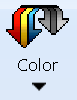
Color Enhancements

With color enhancements, change the overall appearance of the screen. This mode is similar to false color modes that are available in CCTVs and electronic hand-held magnifiers.
 Screen shot of Color icon from MAGic
Below you’ll see the various color enhancements and settings available in MAGic. Keep in mind that these settings and modes are not mutually exclusive, it is possible to have multiple modes and custom settings running together.
Invert Brightness Select this check box if you want MAGic to invert the brightness of colors on your display. Dark colors will appear lighter, while light colors will appear darker. For example, if you select this check box, black text becomes white text and dark blue becomes light blue1.
Invert Colors Select this check box to reverse the colors that are displayed on your screen1.
Invert Black and White If you select this check box, MAGic replaces the color black with white and the color white with black1.
Monochrome and Tint The Monochrome and Tint area allows you to tint your screen with a color or make the screen monochrome (black-and-white, yellow-and-white and so on). MAGic only applies these settings if you select the Enable Monochrome and Tint check box1.
Color Switching The Color Switching area allows you to define rules that switch certain colors on your screen with colors of your choice. MAGic only applies these color switching rules if you select the Enable Color Switching check box1.
Brightness & Contrast Use the Brightness slider to adjust the brightness of your screen. Brightness determines how light or dark colors appear. Move the slider down to reduce the brightness, move it up to increase the brightness. Use the Contrast slider to adjust the contrast of you screen. Contrast determines the difference between lighter and darker areas. Move the slider down to reduce the contrast, move it up to increase the contrast1.
Level & Blend Use the Level slider to adjust the luminescence, or brightness, of the tinting. Move the slider to the left to make the color appear darker, move it to the right to make the color appear brighter. Use the Blend slider to control the intensity of the tinting. Move the slider to the left for strong tinting. At stronger levels, the tinting affects the color of almost everything on the screen. Move the slider to the right for a lower level of tinting. At the lowest levels, the tinting only slightly alters the colors on your screen1.
You can use the keyboard shortcut MAGic Key + F12 to toggle color enhancements on and off.

Focus Enhancements

Turn on the focus enhancement to track what item on the computer has focus.
 Screen shot of Focus icon from MAGic
Customize the color, transparency, thickness, and spacing on your focus enhancement.
You can use the keyboard shortcut MAGic Key + F to toggle focus enhancements on and off.

Keyboard Shortcuts

Launch MAGic Ctrl + Alt + M
Turn MAGic On and Off MAGic Key + Delete
Toggle 1x Magnification MAGic Key + Shift + Delete
Increase Magnification MAGic Key + Num Pad Plus
Decrease Magnification MAGic Key + Num Pad Minus
Toggle Mouse Enhancements MAGic Key + F4
Toggle Cursor Enhancements MAGic Key + F8
Toggle Color Enhancements MAGic Key + F12
Toggle Focus Enhancements MAGic Key + F

Terms

Term Definition
Closed-circuit Televisions (CCTVs) CCTVs are TV systems in which the signal is not publicly distributed. In the low-vision world, CCTVs are used as magnification terminals where printed pages are put under a magnifier and viewed on a monitor.
Electronic Hand-held Magnifiers Electronic hand-held magnifiers are portable magnifiers which utilize digital cameras to magnify texts and objects.
Focus You can think of focus as whatever you’ve clicked onto. On your desktop, if you single left-click on an icon, that icon now has focus. Similarly, if you’re in a web browser and you click on the address bar, the address bar has focus. A more technical definition is that focus is the item that is actionable.
Large Print Program Magnification software is sometimes called “Large Print Programs” because in a command-line interface (like MS-DOS), they simply enlarged the print rather than magnified the screen.
MAGic Key The MAGic Key is the main modification key for hotkeys in MAGic. While the default MAGic key is Caps Lock, users can choose which key the MAGic key is.
Mouse Pointer a graphical image on the computer monitor or other display device. The pointer echoes movements of the pointing device, commonly a mouse, touchpad, or stylus pen, signals the point where actions of the user take place2.
Screen Reader Screen readers are software applications that will attempt to identify, interpret, and read the information being presented on the computer’s screen. You might have heard of screen reading programs such as JAWS, NVDA, Window-Eyes, and Dolphin.
Split Buttons The Split Button is a composite control with which the user can select a default value bound to a primary button, or select from a list of mutually exclusive values displayed in a drop-down list bound to a secondary button.3
Text Cursor The cursor refers to the insertion point in text. Say you open up a Microsoft Word document, you click into the document and you’ll see a cursor appear. With standard settings, the cursor is typically simply a blinking horizontal line.
User Interface The interface features through which users interact with the hardware and software of computers and other electronic devices4. Usually abbreviated to “UI” but sometimes abbreviated to “GUI” for graphical user interface.

Resources

Below you’ll find more information on learning how to use MAGic.
MAGic Screen Magnification Software with Speech User’s Guide Complete guide to using MAGic.
MAGic Screen Magnification Software with Speech Quick Start Guide Abbreviated guide to using MAGic
MAGic Keystroke Cards A document with flash cards that match up MAGic keyboard shortcuts with their functionality.

Works Cited

1. Freedom Scientific, Inc. (2016). Magic screen magnification software with speech user’s guide. Retrieved from http://www.freedomscientific.com/content/documents/manuals/MAGic/MAGic-Users-Guide.pdf
2. Wikimedia Foundation, Inc. (2015, December 25). Pointer (graphical user interfaces). Retrieved from Wikipedia website: https://en.wikipedia.org/wiki/Pointer_(graphical_user_interfaces)
3. Microsoft. (n.d.). Split button. Retrieved from Microsoft Developer Resources website: https://msdn.microsoft.com/en-us/library/windows/desktop/dd940505(v=vs.85).aspx
4. user interface. (n.d.). Dictionary.com Unabridged. Retrieved April 29, 2016 from Dictionary.com website http://www.dictionary.com/browse/user-interface

JAWS Topic: Keyboard Shortcuts in Outlook

Sending and Recieving

Action Shortcut Context
Send Alt + S In a message
Reply to a message Ctrl + R Focus on or in a received message
Reply all to a message Ctrl + Shift + R Focus on or in a received message
Forward a message Ctrl + F Focus on or in a received message
Check for new messages Ctrl + M In Mail
Create a messag Ctrl + Shift + M Anywhere in Outlook 2010

Organization

Action Shortcut Context
Mark as read Ctrl + Q Focus on or in a received message
Mark as unread Ctrl + U Focus on or in a received message
Create a folder Ctrl + Shift + E Anywhere in Outlook 2010
Move an item Ctrl + Shift + V Focus on or in a received message
Search Ctrl + E Anywhere in Outlook 2010 – note, it will search in the current context.

Navigation

Action Shortcut Context
Switch to Mail Ctrl + 1 Anywhere in Outlook 2010
Switch to Calendar Ctrl + 2 Anywhere in Outlook 2010
Switch to Contacts Ctrl + 3 Anywhere in Outlook 2010
Switch to Tasks Ctrl + 4 Anywhere in Outlook 2010
Switch to Notes Ctrl + 5 Anywhere in Outlook 2010

Calendar

Action Shortcut Context
Create an appointment Ctrl + Shift + A Anywhere in Outlook 2010
Show 10 days in the calendar Alt + 0 In Calendar
Show 1 day in the calendar Alt + 1 In Calendar
Show 2 days in the calendar Alt + 2 In Calendar
Show 3 days in the calendar Alt + 3 In Calendar
Show 4 days in the calendar Alt + 4 In Calendar
Show 5 days in the calendar Alt + 5 In Calendar
Show 6 days in the calendar Alt + 6 In Calendar
Show 7 days in the calendar Alt + 7 In Calendar
Show 8 days in the calendar Alt + 8 In Calendar
Show 9 days in the calendar Alt + 9 In Calendar

Contacts

Action Shortcut Context
Create a contact Ctrl + Shift + C Anywhere in Outlook 2010

Notes

Action Shortcut Context
Create a note Ctrl + Shift + N Anywhere in Outlook 2010

Tasks

Action Shortcut Context
Create a task Ctrl + Shift + K Anywhere in Outlook 2010

Want more shortcuts?!

Visit the complete list of Keyboard Shortcuts in Outlook 2010 on Microsoft’s site.

ZoomText Legacy: Tools

ZoomText logo

The Tools Tab

Final tab on the ZoomText tool bar is the Tools tab.
This tab has extra features and functionality that works with external devices

Camera

The ZoomText Camera feature allows you to use any high-definition (HD) webcam to magnify printed items and other objects right on your computer screen—including bills, magazines, photographs, medicine labels, craft items and more. Simple controls allow you to quickly zoom in and out and choose between full and high contrast colors1. If your computer does not have a webcam, you will not be able to utilize this feature.
Full Webcam mode takes up the entirety of screen.
Docked Webcam mode takes up half of the screen.

Listening

Recorder ZoomText Recorder allows you to turn text from documents, webpages, email or other sources into audio recordings that you can listen to on your computer or transfer to your mobile device for listening to on the go. You simply copy or select the text you want to record and start ZoomText Recorder. With a few simple steps you give your recording a friendly name, choose a destination to record to and click the record button. And each recording is created using your choice of ZoomText voices or any other voices available on your system1.

Copy text to the clipboard and then simply press the Recorder button or use the hotkey Caps Lock + Ctrl + C.

Pressing the Recorder button will open the ZoomText Recorder menu.

Record text to a file or directly into Windows Media Player.

Use the Track Name text field to name your recording.

If you’re recording your text as file, choose which file type you’d like to save it as. You can choose between wav (Waveform Audio File Format) or wma (Windows Media Player File Format). The Waveform Audio File type is more universal and will likely be compatible with a range of devices and applications. The Windows Media Player type is specifically for Windows Media Player and won’t be as compatible outside of that context.

Choose the Track Location which is where in your computer’s memory the audio file will be saved.

When you’re ready, hit the Record Text button to start your recording. The progress bar to the right will continue to fill with green, progressing from left to right, several times.

Under Preview and Capture, listen to a preview of your capture with the Listen to Preview button. To the right, there is a text box that holds the underlying text of the capture. You can replace this text by adding text to the clipboard and hitting the Capture Keyboard button. Here you can review the underlying text of your recording to rerecord or make a new file.

Select Show Synthesizer Settings to choose specific settings for your recording. Change the Synthesizer, Voice, Rate, Pitch, and Volume of your recording.

Background Reader (BgRdr) Background Reader allows you to listen to documents, webpages, email or any text while you simultaneously perform other tasks. You simply copy or select the text you want to listen to and start Background Reader. While the text is being read aloud, you are free to type notes, browse the web or do other work on your computer1.

The Background Reader is similar to the Recorder – however, instead of creating an audio file out of your clipboard text, you simply play the clipboard text using ZoomText.

Copy text to your clipboard and then press the Background Reader button or use the hotkey Caps Lock + C.

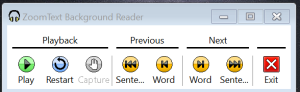
Pressing the BgRdr button (or using the hotkey) will bring up the ZoomText Background Reader toolbar. Use the toolbar to play and pause the recording, restart the recording from the beginning, capture and start reading new text, and move through the text by sentence and word.

The Background Reader uses a series of hotkeys (see below).

Screen shot of the ZoomText Background Reader Tool Bar
Screen shot of the ZoomText Background Reader Tool
Start Background Recorder from clipboard text Caps Lock + C
Start Background Recorder from selected text Caps Lock + S
Play/ pause Background Reader Caps Lock + Enter
Show Background Reader toolbar Caps Lock + T
Restart Background Reader Caps Lock + Backspace
Background Reader read current word Caps Lock + Ctrl + Space
Background Reader read previous word Caps Lock + Ctrl + Left Arrow
Background Reader read next word Caps Lock + Ctrl + Right Arrow
Background Reader read current sentence Caps Lock + Space
Background Reader read previous sentence Caps Lock + Left Arrow
Background Reader read next sentence Caps Lock + Right Arrow
Exit Background Reader Caps Lock + Escape

ImageReader (ImageRdr)

This is ZoomText’s Ocular Character Recognition (OCR) feature.
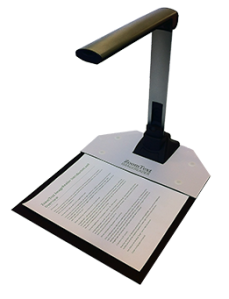
To use this feature, you’ll need to purchase the ZoomText ImageReader camera. This is an external device that, at the time of writing this, costs $749.00.
 Image of the ZoomText ImageReader OCR Camera
You can follow this link to find out more about the ZoomText ImageReader.

Application Specific Settings

In ZoomText, we can create sets of settings specific to each of our programs. For example, maybe you prefer higher magnification when using Microsoft Excel, you can set up application specific settings so each time you switch to Excel, your magnification automatically goes up!
You can have specific settings for all your applications! Settings will switch automatically as you
Customize your settings for the current application, then simply go to File and then Save Application Settings
To review and manage your application settings, go to File then Manage Application Settings. This will open the Manage Application Settings menu where you can enable, disable, or delete application settings. Select the Help button to read more about Application Settings in the ZoomText Help Guide.
Use Name Applications in the File menu to give applications “friendly” names that make more sense to you. For example, rename the Application “AcroRd32.exe” to “Adobe” or “Adobe Reader”. Creating friendly names for application will help you organize and manage application settings.

References

1. AI Squared. (n.d.). Zoomtext 10 quick reference guide. Retrieved from AI Sqaured website: http://www.aisquared.com/docs/zt10/ZT10_QRG_US_English.pdf

Continuing VoiceOver for iOS

Reading Gestures

Silence VoiceOver 2 Finger Single Tap
Start Reading from the Top of the Page 2 Finger Swipe Up
Start Reading from the Focus 2 Finger Swipe Down

Exercise – Typing and Reading in Notes

Go to the Notes app and practice typing.
Practice reading what you’ve written – read from the top and read from focus.

Navigating Gestures

Move to Next or Previous Page 3 Finger Swipe Left and Right
Scroll Up and Down a Page 3 Finger Swipe Up and Down

Exercise – Navigation

Swipe left and right on the Home Screen
Swipe up and down in settings

Apple Wireless Keyboard

Enable/ Disable Quick Navigation Left Arrow Key + Right Arrow Key
With quick nav enabled, you can use the keyboard to do all the VoiceOver gestures. With quick nav disabled, you can use the keyboard as a traditional external keyboard.

Exercise – Apple Keyboard

Turn quick nav on – practice navigating through the home screen.
Open the notes app and then turn quick nav off. Practice using the keyboard to write and move around a document.

The Windows Desktop & Starting JAWS Follow-up Part 2

Follow-up Exercise 2

The exercise below is based on the Windows Desktop & Starting JAWS lesson. Please feel free to refer to the lesson or any other resource while completing this assignment.
1. Change your focus to the desktop and use your context key to open the context menu for the Recycle Bin. What are the options here in the context menu? If you open the context menu for Microsoft Word, are there more items in the context menu compared to the Recycle Bin or less?
2. What are the two ways you can maximize a program window?
3. What are three different ways you can minimize a program window?
4. Using the context key, how can I pin a program to my taskbar?
5. How do you move your focus to the taskbar?
6. What is the hotkey to start JAWS? What is the hotkey to make JAWS the active program? What is the hotkey to close JAWS?
7. What is the hotkey to open Windows Explorer?
8. How can you have JAWS read the title bar of the active program?
9. What option is always available when you use Alt + Tab regardless of what programs you have open?
Please record your answers to the questions below and send them to me via email at james.allen@vermont.gov prior to our next training.

Beginning TalkBack

What is TalkBack?

TalkBack is a Screen Reader. Screen readers are software applications that will attempt to identify, interpret, and read the information being presented on the computer’s screen.
TalkBack is built in to Android devices. You might hear it referred to as “Android TalkBack” or “Google TalkBack”
Traditional screen readers like JAWS, NVDA, Window-Eyes, and Dolphin operate off of keyboard input. TalkBack operates off of touch screen gestures similar to other mobile device screen readers such as iOS VoiceOver and Windows Narrator.

What is a Gesture?

A gesture is the way in which you touch the touch screen display of your mobile device to perform actions like opening apps, having text read, and moving through items.
Different gestures require different types of touches. While other mobile device screen readers utilize gestures with multiple fingers, all TalkBack gestures only require a single finger.
Some gestures are performed by dragging your finger along the screen, tapping your finger on the screen, or some combination, repetition, or sequence of both .

Turning TalkBack On and Off

There are two different ways for users to turn on and off TalkBack. Users can navigate through settings to turn TalkBack on and off. There is also a great feature that can be set up called the Accessibility Shortcut which will be the easiest way to turn TalkBack on and off.

Settings

Navigating through settings is the main way to turn TalkBack on and off. If you have your accessibility button enabled, you’ll find using that feature provides an easier way to turn on TalkBack. However, going through Settings is the only way to turn TalkBack off.
Settings appears as an application icon, just like any other app on the iPad. In Settings, go to Accessibility. In Accessibility, go to TalkBack. Under TalkBack, turn TalkBack on.
To turn off TalkBack in the TalkBack section, touch the on/off button once again. You’ll hear TalkBack say, “Alert: Stop TalkBack. Touching Ok will Stop TalkBack”. Move down to the OK button to continue.

Accessibility Shortcut

The easiest way to turn on TalkBack is to use the accessibility shortcut. This allows users hold the power button and then two finger tap and hold to enable TalkBack. This shortcut only works to turn TalkBack on.
To setup the accessibility shortcut to work with TalkBack, go to Settings, select General, then select Accessibility. The last item in the Accessibility section is the Accessibility Shortcut, select it. In this section, you’ll see text that says, “Triple-click the home button for:” followed by this list of items: VoiceOver, Invert Colors, Grayscale, Zoom, Switch Control, AssistiveTouch. Select VoiceOver. Note that if any other items on this list are selected, the functionality of the accessibility shortcut will be different. For now, I recommend only having VoiceOver selected.

The Home Screen

Before we start using TalkBack, we need to understand the environment we’re going to be working in. The main interface of Andriod is referred to as the Home Screen. When you activate a the home button, this is where you’ll land. This part of the interface will give us information about our system and access to our recently used apps.
The home screen is organized into three distinct sections. The status bar, apps, and the dock.
The Status Bar Here you can find basic status information, such as notifications, the status of your battery, and connections to Wifi, Bluetooth, or your mobile network. Note that if your focus is on the status bar, you can’t use the usual swipe gesture to move to the next item. To move focus out of the status bar, touch another part of the screen.
Apps Apps are small programs that perform specific tasks, such as check the weather, listen to music, send email, or read books. Apps are opened via icons on your screen. For example, the Gmail icon on your home screen opens the Gmail app. To discover what apps are on your Home screen, simply move your finger over the screen. To open an app once it has focus, double-tap the screen. To explore all apps on your device, locate the icon called “Apps” and double-tap. You’re likely to have more than one screenful of apps, and you can move between screens with a two-finger left or right swipe. TalkBack will announce what page you’re on, such as “Page 1 of 3.” To add an app to your Home screen, touch the app once to give it focus, then double-tap and hold to place it on the Home screen.
The Search Bar Some Android devices automatically include a search bar on the Home screen. Here you can search the web without needing to open a separate app. If your device doesn’t include the search bar automatically, you can add it as a widget (refer to the Widgets section below).
Notifications The status bar at the top of the screen includes notifications. To open the notifications, two-finger swipe down from the top of the screen. To close the notification shade, use a two-finger swipe from left to right.
Folders Folders are collections of apps. For example, a Google Play folder might hold a collection of Google Play apps, such as Play Music, Play Books, and Play Movies. Folder icons can appear on your Home screen just like app icons. You can open the folder, then explore the app icons inside the folder by moving your finger over the screen.
Widgets Your Home screen might also have widgets. Widgets are shortcuts to let you get information or perform tasks extra quickly. For example, the Calendar widget displays your calendar on your Home screen so that you can read your calendar events without any extra steps. To add a new widget, touch and hold two fingers on the Home screen. When you hear “Home screen one of one,” you’re on the screen where you can add widgets. Near the bottom of the screen, locate the “Widgets” button, then double-tap to select. Swipe right or left to move your focus through the widgets, then two finger swipe left to move to the next page. To add a widget, double-tap it while it has focus.

Starting TalkBack Tips

An important and sometimes difficult concept for using TalkBack is to listen. It sounds easy enough but can prove more difficult when exercising it in action. Listening as TalkBack speaks is critical. TalkBack will explain the context your in and will often give you directions about what gestures are relevant. So, taking a deep breath and being patient, it extremely important. If I do a gesture while TalkBack is speaking, TalkBack will stop speaking about the last active item and move to the new item. This means that if we rush around, we’ll miss what could be critical information.
Don’t get discouraged. This technology (like most technologies) is not perfect. Occasionally you will perform a gesture that VoiceOver will interpret as a completely different gesture. Sometimes your OS might slow down and TalkBack might start going slow. Sometimes you will be completely baffled. It’s all part of the process.

Starting Gestures

Single Finger Tap This gesture selects an item. What does that mean? Well, it moves the focus to that item. Visually the item becomes outlined. However, having focus means that we can perform an action on that item. For example, to open an app in TalkBack, you’ll first need to select it and bring the focus to it.
Single Finger Drag The problem with the single finger tap is that it requires you to tap on something. For users who can’t see the screen, being able to find and tap the correct area of the screen is much more difficult. Instead, users can do a single finger drag. This will move the focus around the screen as you drag your finger. Whatever item was last announced by TalkBack is the item that has focus. This gesture is extremely useful for finding apps, moving through controls, and using the on screen keyboard.
Single Finger Flick Left and Right Another important gesture for moving the focus around is the single finger flick. If you’re a Windows user, you can think of the single finger flick as being analogous to the Tab key. The flick will move you forwards and backwards through available items. If your focus is on the app in your home screen that is in the top left grid space, a single finger tap will move you to the next app in the top row. Continue to perform this gesture, and you’ll eventually move through all the apps on the first page of your home screen.
Single Finger Double Tap The single finger double tap is how you activate an item. This gesture is critical. You will use it to open apps, submit forms, toggle settings, and more. As you can tell from that list, exactly what this gesture will do varies depending on the active item. If the active item in an app, it will launch the app. If the active item is a hyperlink, it will send you to that page. If the active item is text, it won’t do anything!

The Back Button, Home Button, and Overview Button

The Back Button Lets you exit the current context and go up in the hierarchy
The Home Button Returns you to the home screen.
Overview Button Shows open apps.

JAWS Topic: Windows 10 Mail App

Navigation

Move Between Regions Tab
Move Within Regions Up and Down Arrow Keys

Shortcuts for Sending Mail

Create a new message Ctrl + N OR Ctrl + Shift + M
Reply to a message Ctrl + R
Reply all to a message Ctrl + Shift + R
Forward a message Ctrl + F
Send message Ctrl + Enter
Add an attachment Alt + I

Managing Your Inbox

Delete a message Ctrl + D OR Delete
Archive a message Backspace
Mark as read Ctrl + Q
Mark as unread Ctrl + U
Toggle important status Ctrl + Shift + G
Search Ctrl + E

Accessibility

The Windows 10 Mail app has had some accessibility issues in the past. How the app functions for screen reader users seems to be improving, but it certainly isn’t at 100 percent accessibility and usability as of yet. Below are a couple of articles and resources from Microsoft on accessibility and Windows 10 Mail.

Article from Microsoft Accessibility Blog on the accessibility of Windows 10 Mail

Guide from Microsoft Office Support on using a screen reader with Windows 10 Mail

Guide from Microsoft Office Support on reading emails with a screen reader in Windows 10 Mail