Comparing Online File Sharing and Storage Systems

Online File Storage

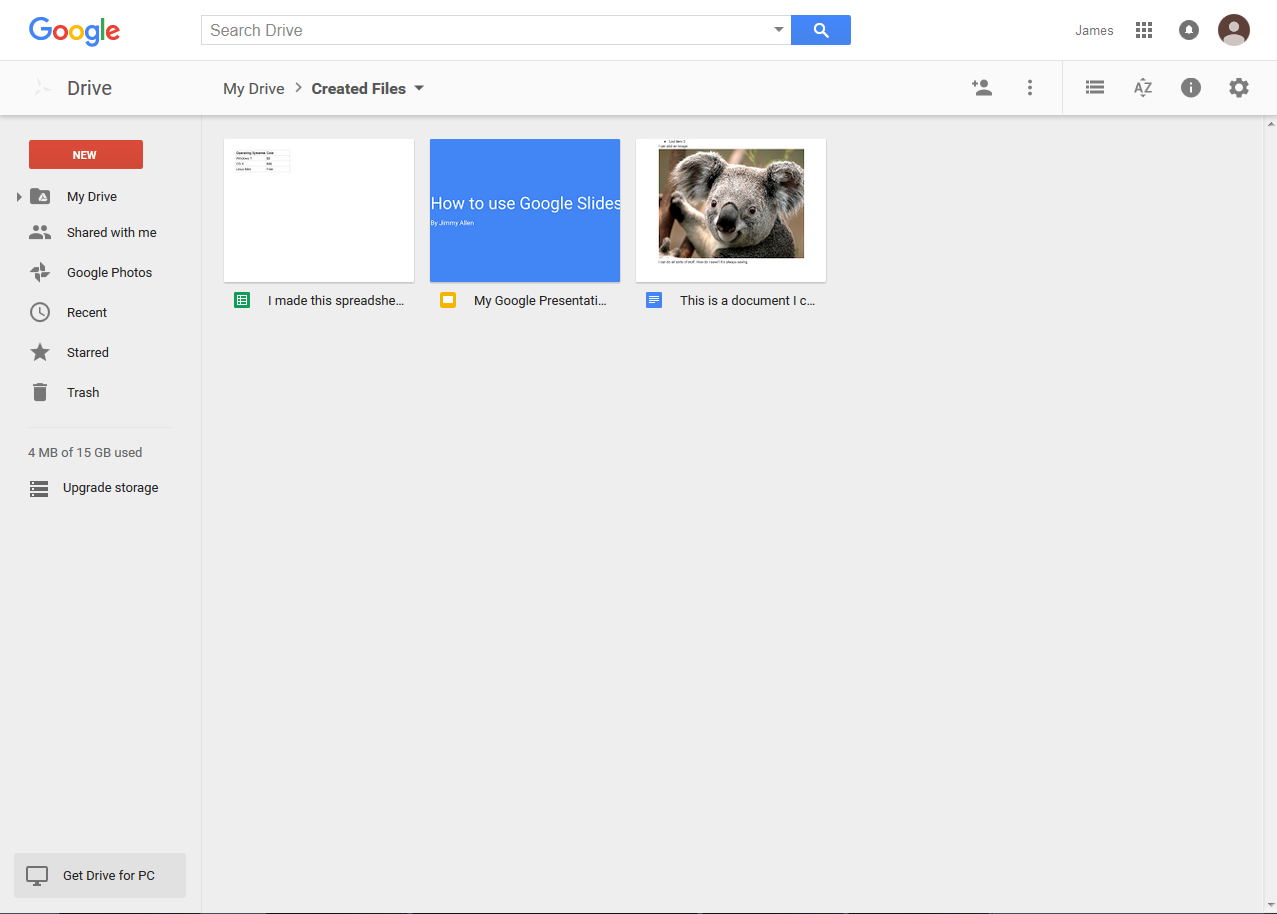
Google Drive

Account Creation To create a Google Drive account, you need to create an account with Google. If you have a Gmail account, you already have a Google Drive account.
Storage Specifications 15 GB of free storage
Features Upload and download documents from anywhere across a range of devices including desktops, laptops, tablets, and smart phones.

Share documents with other users via email or by shareable URL.

Create and manage permissions for files and folders.

Use Google Docs to create and edit documents.

Use Google Sheets to create and edit spreadsheets and tables.

Use Google Slides to create and edit presentations.

For Windows and Mac users, there is a desktop application for Google Drive that makes moving files from local storage to your Google Drive easier and seamless. Unfortunately, this application is not available for Linux users. However, there is software out there that allows Linux users some functionality with Google Drive1.

Screen Shot Thumbnail of screen shot of Google Drive

Evernote

Account Creation To create an Evernote account, you simply need an email address.
Storage Specifications 60 MB of free storage per month
Features Create notes and attach your files. This allows you to give a little bit more information about a specific file than just the name.

Easy drag and drop files from your computer into Evernote.

Organize notes into notebooks (as opposed to files into folders).

Tag notes to make them easily searchable.

Share files and notes via email, social networking, and shareable links.

Screen Shot Thumbnail of screen shot of Evernote

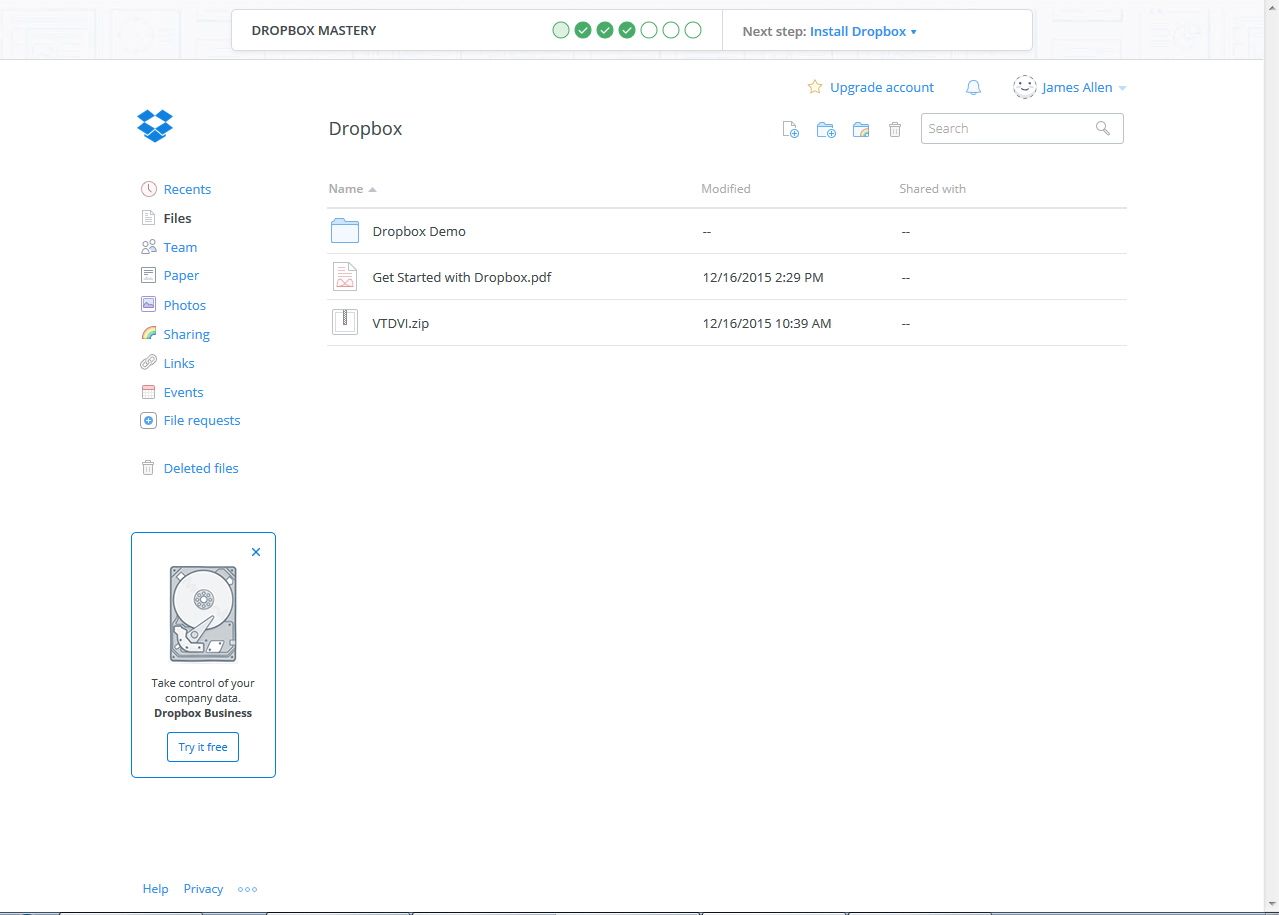
Dropbox

Account Creation To create a Dropbox account, you simply need an email address.
Storage Specifications 2 GB of free storage
Features Upload and share documents

Organize files in folders

Share documents via email

Download the Dropbox desktop application, available on Windows, Mac, and Linux.

Screen Shot Thumbnail of screen shot of Dropbox

Helpful Links for Recovering Mac Backups with Windows

Mac File Recovery

Catacombae HFSExplorer Download Catacombae Web page with information on and download for HFSExplorer, “…an application that can read Mac-formatted hard disks and disk images.”
How to Restore Files From a Time Machine Backup on Windows A How-To Geek article detailing how to go about recovering Time Machine backups via HFSExplorer on Windows
Opening Time-Machine OSX backup files on Windows 7? A Super User message board about how to open Time Machine backup files in Windows 7
View Time Machine backup drive on Windows 7 A Ask Different message board about how to view Time Machine backups in Windows 7

Outlook Calendar with JAWS

Basic Commands

Like other Microsoft Office and Windows applications, we can utilize our strategy of tabbing between parts and using the arrow keys within parts in the calendar section of Outlook. However, Outlook gives us a whole slew of keyboard commands to make moving around the calendar even easier.

Move between sections of the interface Tab
Move within sections of the interface Arrow Keys
Move into the Ribbon Alt

Best Bet Commands

As you’ll see, Outlook gives us many different avenues for navigating the calendar. However, you most likely won’t need to memorize every command in this guide to become fluent at using your calendar. Below are my best bet keyboard commands. These are the functions I see every calendar user hitting every day.

Switch to mail Ctrl + 1
Switch to calendar Ctrl + 2
New calendar appointment Ctrl + N
Go to a date Ctrl + G
Search Ctrl + E
Go to previous appointment Ctrl + Comma or Ctrl + Shift + Comma
Go to next appointment Ctrl + Period or Ctrl + Shift + Period
Set up recurrence for an open appointment or meeting Ctrl + G
Create a meeting request Ctrl + Shift + Q

View

Without fancy commands, we can move through hours and appointments on our calendar using tab and the arrow keys. However, the effectiveness of these functions depend on your view.

Move to previous/ next appointment Shift Tab/ Tab
Move to previous/ next half hour block of time Arrow Keys

What you’ll find as you play with these features is that you can only move to appointments or times within your current view. We are able to change the view by tabbing to the Back date and Forward date buttons. However, we can achieve more specific results faster using keyboard commands.

Show one day in the calendar Alt + 1
Show two days in the calendar Alt + 2
Show three days in the calendar Alt + 3
Show four days in the calendar Alt + 4
Show five days in the calendar Alt + 5
Show six days in the calendar Alt + 6
Show seven days in the calendar Alt + 7
Show eight days in the calendar Alt + 8
Show nine days in the calendar Alt + 9
Show 10 days in the calendar Alt + 0
Switch to Month view Alt + Equal or Ctrl + Alt + 4
Switch to Full Week view Alt + Minus Sign or Ctrl + Alt + 3
Switch to Work Week view Ctrl + Alt + 2

Navigation

Instead of adjusting the view, we might choose to simply use navigation commands instead. Navigation commands allow us to move to specific places regardless of our current view.

Go to the next day Ctrl + Right Arrow
Go to the next week Alt + Down Arrow
Go to the next month Alt + Page Down
Go to the previous day Ctrl + Left Arrow
Go to the previous week Alt + Up Arrow
Go to the previous month Alt + Page Up
Go to the start of the week Alt + Home
Go to the end of the week Alt + End
Go to previous appointment Ctrl + Comma or Ctrl + Shift + Comma
Go to next appointment Ctrl + Period or Ctrl + Shift + Period

VoiceOver for iOS Topic: Deleting Recent Calls in Phone

Step 1 – Ask Siri to open Phone.
Step 2 – After the phone app opens, search your finger along the bottom edge of the screen until you find the toolbar. The toolbar includes 5 buttons: Favorites tab (1 of 5), Recents tab (2 of 5), Contacts tab (3 of 5), Keypad tab (4 of 5), and Voicemail (5 of 5).

Step 3 – On the toolbar, find the Recents tab and single finger double tap to open it.

Step 4 – Move your finger to the top edge of the screen until you land of the All button, Missed button, or Edit button. It doesn’t matter which of these you land on, we just want to be above the start of the call list.

Step 5 – Use the single finger flick to the right to move down the page until you begin hearing your calls.

Step 6 – To delete a call, swipe up with one finger until you hear delete and then single finger double tap to confirm.

Training Videos on Windows Basics, Firefox Bookmarks, and Dragon NaturallySpeaking

Videos on Windows Basics

Copy, Cut, and Paste Tutorial for Beginner’s using Windows YouTube video demonstrating how to copy, cut, and paste in Windows
Top 10 keyboard shortcuts you didn’t know about YouTube video going over basic keyboard commands for Windows

Videos on Bookmarks in Firefox

How to Create/Organize Bookmarks in Firefox YouTube video demonstrating the basics of creating and organizing bookmarks in Firefox
How to Organize Bookmarks in Firefox and Other Browsers YouTube video with tips on organizing a lot of Bookmarks in Firefox and other web browsers.

Videos on Dragon NaturallySpeaking

Dragon NaturallySpeaking 13: Dictation YouTube video explaining the basics of dictating with Dragon.
Dragon NaturallySpeaking 13: Edit, Format, Correct YouTube video explaining the basics of correcting, editing, and formatting with Dragon
Dragon NaturallySpeaking 13: Voice Commands YouTube video explaining commands in Dragon
Guide on Windows Basics and Bookmarks in Firefox


JAWS Topic: Creating and Managing Bookmarks in Internet Explorer

Add to Favorites Ctrl + D

This command will open a dialog that will allow you to add the current webpage to your favorites list. By default, you’ll be focused on the name of the webpage which is automatically harvested from the page’s metadata. Feel free to replace it with whatever you’d like. Different developers employ different naming schema, so some webpage titles may not be ideal.

Use Tab and Shift + Tab to navigate this dialog. The sections include: name: edit (described above), create in: combo box, new folder button, add button, and cancel button button.

The create in: combo box allows you to choose where in your favorites you’d like to add the current page. So, if you have a subfolder for a certain type of link, you can use this control to direct the current web link to that folder. For example, I have a Cooking folder where I save webpages with recipes.

The new folder button lets us add a new folder to our favorites. Press space bar or enter to activate this control. A new dialog will open with a blank text field for you to name the new folder and a create in: combo box used to designate where the new folder will be created (as described above).

The add button simply completes the process and adds the new bookmark to your favorites. Rather than navigating to this control and activating it to complete this process, you can achieve the same thing by pressing enter on the name: edit or the create in: combo box.

The cancel button simply ends the process without saving the new bookmark. You can also simply press escape anywhere in this dialog to end the process without saving.

View Favorites Ctrl + I

The view favorites menu is where you can go to actually go to the webpages you have bookmarked. We can also delete bookmarked pages from this area. Navigate your favorites with the up and down arrows. This area will include both bookmarked web links and folders containing bookmarked web links and possibly more folders. To open a folder, press enter. The contents of the folder will appear directly below the folder, so you’ll find them by pressing down arrow after hitting enter.

To follow a bookmark, simply press enter.

To delete bookmarks in this section, simply press the delete key.

Organize Favorite Ctrl + B

The Organize Favorites dialog allows us to create new folders, change the location of bookmarks and folders, rename bookmarks and folders, and delete bookmarks and folders. This dialog is somewhat confusing to use. The basic idea is that you move your focus in the Favorites Tree View section and then either tab down to the desired control or utilize keyboard command for each.

New Folder Alt + N

Activating this control will add a new folder to your current location (see Favorites Tree View). After activating this control, you’ll be put into a text edit field where you can type the name of the folder. Simply press enter to complete the folder creation process.

Move… Alt + M

Opens the Browse for Folder Dialog. Here you can choose where to move the current folder or bookmark.

Rename Alt + R

After activating this control, you’ll be put into a text edit field where you can type the name of the folder.

Delete… Alt + D

Activating this control will delete the current bookmark or folder…

Favorites Tree View

Here you can move through your bookmarks and folders, similar to how we navigate our files using Windows Explorer. Use the up and down arrows to move. Expand closed folders by pressing enter.

JAWS Topic: Download Google Drive for Windows

Google Drive is one of many cloud computing options along with Dropbox, OneDrive, and Evernote. However, a great feature that Google Drive has is a program for PC that allows you to interact with your Google Drive file space via Windows File Explorer. This lets you save files to the cloud without going through the hassle of web browsing (hooray!). Below are steps on how to download Google Drive and then verify the installation.

Steps to Download Google Drive with JAWS using Internet Explorer

  1. Go to The Google Drive PC Download Page
  2. Use Insert + F7 to open the link lists dialog. Press D until you find the link titled Download for PC.
  3. The next page will have the terms of service and your focus should be on the Accept and Install button, so you can simply press enter. However, if you find you’re not on this button, use Insert + F5 to open the forms list dialog. Now press A until you find the button titled Accept and Install. Press enter to move your focus to this button, and then press enter again to activate this button.
  4. Use Alt + N to interact with the pop-up window to run the google drive download.
  5. A User Account Control Pop-up will open. Use tab to move around this message and select allow it to make changes to your computer.
  6. Use tab to move to the Get Started button.
  7. A dialog will open prompting you for your Google username and then password. These entries for username and password are on separate pages, so you can simply press enter after you have entered each.
  8. The next set up windows explain the basics of Google Drive for PC. Simply use Tab to move to the next button on each page.

Check that Google Drive was Successfully Installed

  1. Use Windows + E to open a new File Explorer window.
  2. Use Tab and Shift + Tab to navigate the File Explorer menu until you find the Tree View.
  3. Use the Up and Down Arrows to navigate through the sections of the Tree View until you find Google Drive.

Alternative Method to Check that Google Drive was Successfully Installed

  1. Press the Windows button.
  2. Type Google Drive.
  3. Press Insert + Tab and you should hear Google Drive announced as a program. Press enter and file explorer will be launched.

ZoomText Topic: Setting Up the Multiview Global Window Mode

If you’re working with multiple monitors, you might find it useful to use the Multiview Global Window mode. This mode allows you to have your view duplicated on both monitors. You can then change the level of magnification and effects on each individual monitor. So, you might be working within a large spreadsheet and want to not lose where you are in the overall table, but you are not zoomed in enough to actually read and write. Using the Multiview Global, you could be zoomed out in one monitor, and zoomed in on the other!

  1. Switch to the ZoomText toolbar.
  2. On the Magnifier Tab, go to Window.
  3. On the Window dropdown menu, select Multiple Monitors.
  4. On the Multiple Monitors menu, select the Multiview Global view.
    Use Caps Lock + V to switch which monitor is active. You can only adjust settings for the active monitor.

Starting Word with VoiceOver for macOS

The Ribbon

The Microsoft Office Suite is a set of productivity applications that share common features both functionally and stylistically. One main feature you’ll observe throughout this group of software is the Ribbon. The Ribbon is a toolbar that occupies the top of the Office application window, running horizontally the whole length of the Window.

The Ribbon features a myriad of different controls. These controls vary slightly from program to program, but some examples include: text editing, image or chart insertion, spell and grammar check, etc. The Ribbon is organized into tabs. The number and type of tabs vary from program to program. Further, certain tabs in a specific program can be enabled or disabled, so you might find that a friend has a different number of Ribbon tabs than you.

In Microsoft Word, you’ll find a list of the default Ribbon tabs and their purpose below:

Tab Command Group
Home Clipboard, Font, Paragraph, Styles, and Editing
Insert Tables, Illustrations, Add-ins, Media, Comments, Header &
Footer, and Text
Design Document Formatting and Page Background
Layout Page Setup, Paragraph, and Arrange
References Table of Contents, Footnotes, Citations & Bibliography,
Captions, Index, and Table of Authorities
Mailings Create, Start Mail Merge, Write & Insert Fields, Preview
Results, and Finish
Review Proofing, Insights, Language, Comments, Tracking, Changes, and
Compare
View Views, Show, Zoom, Window, and Macros

Navigation

Read the Title Bar of the Active Program VO + F2
Read the Item Currently in Focus VO + Shift + N
Move to the top of the document Command + Home
Move to the bottom of the document Command + End
Go To Menu F5

Opening, Saving, and Printing

Create a New Empty Document Command + N
Save the Document Command + Shift + S
Open a Saved Document Command + O
Print Command + P

Selecting Text

Select Text Hold Shift while moving the cursor
Start and Stop Selection Mode VO + Return
Read Selected Text VO + F6

Formatting Text

Copy Command + C
Cut Command + X
Paste Command + V
Undo Command + Z
Redo Command + Y
Bold Selected Text Command + B
Open Fonts Menu Command + D
Italicize Selected Text Command + I
Underline Selected Text Command + U
Read Formatting Attributes of Selected Text VO + T
Decrease Font Size Command + [
Increase Font Size Command + ]
Single-space Lines in Document Command + 1
Double-space Lines in Document Command + 2

Review

Start Spelling and Grammar Check F7

Need More Help?

If you’re looking for a command or function not listed above, check out the Microsoft Support Guide to Keyboard Commands in Word for macOS

ZoomText Key Commands Quick Reference

zoomtext logo

Program

Function Keyboard Command ZoomText Keyboard Command
Start ZoomText Ctrl + Alt + Shift + Z
Enable/ Disable ZoomText Caps Lock + Ctrl + Enter F1
Switch to ZoomText Caps Lock + Ctrl + U F2

Zoom

Function Keyboard Command ZoomText Keyboard Command
Increase Zoom Caps Lock + Up Arrow F6
Decrease Zoom Caps Lock + Down Arrow F5
Zoom to 1x Toggle Caps Lock + Enter
Mouse Wheel Zoom Caps Lock + Shift and Roll Mouse Wheel

Enhancements

Function Keyboard Command ZoomText Keyboard Command
Enable/ Disable Color Enhancements Caps Lock + C F3
Enable/ Disable Pointer Enhancements Caps Lock + P
Enable/ Disable Cursor Enhancements Caps Lock + R
Enable/ Disable Focus Enhancements Caps Lock + F

Reader

Function Keyboard Command ZoomText Keyboard Command
Enable/ Disable Voice Caps Lock + Alt + Enter F12
Increase Speaking Rate Caps Lock + Alt + Up F8
Decrease Speaking Rate Caps Lock + Alt + Down F7
AppReader: App View Caps Lock + Alt + A F9
AppReader: Text View Caps Lock + Alt + T F10
AppReader: SpeakIt Tool Caps Lock + Alt + S
Pause Speech Ctrl

Tools

Function Keyboard Command ZoomText Keyboard Command
ZoomText Finder Caps Lock + Ctrl + F F4
Background Reader Caps Lock + Ctrl + B F11

Get a Print Copy

ZoomText 11 Key Commands Quick Reference

ZoomText 11 Key Commands Quick Reference