ZoomText: Magnifier

ZoomText logo

ZoomText 11 Magnifier/ Reader

ZoomText 11 is a magnification application developed by AI Squared
Also referred to as a “Large Print Program”
ZoomText also has screen reader functionality
You can also access the ZoomText 11 User Guide for a full explanation of settings and features.

Starting ZoomText

ZoomText 11 runs like any other program in Windows. However,
as the computer becomes more difficult to visually navigate as we increase our level of zoom, ZoomText provides users with a large variety of keyboard commands.
There are keyboard commands for almost every feature in ZoomText, but users certainly don’t need to memorize them all to become efficient ZoomText users. Below are some of the basic commands which will help you control ZoomText.
Start ZoomText Ctrl + Alt + Shift + Z
Enable/ Disable ZoomText Caps Lock + Ctrl + Enter
Switch to ZoomText Caps Lock + Ctrl + U
Enable/ Disable Voice Caps Lock + Alt + Enter

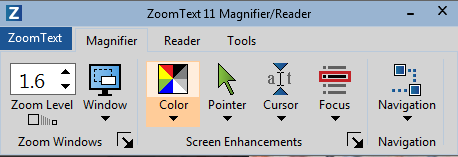
ZoomText 11 Magnifier Tab

Screenshot of the ZoomText 11 user interface showing the Magnifier Tab

Zoom Level

Magnifies the screen from 1x to 60x
There are several ways to change the Zoom Level when using ZoomText 11.
Via the Keyboard
Decrease Zoom Caps Lock + Down Arrow
Increase Zoom Caps Lock + Up Arrow
Zoom to 1x Toggle Caps Lock + Enter
Via the ZoomText Keyboard Software
Decrease Zoom F5
Increase Zoom F6
Via the Mouse Wheel
Mouse Wheel Zoom Caps Lock + Shift and Roll Mouse Wheel

Window​

The Window button allows users to select the zoom window type. The types of zoom windows that are available depend on whether you are running your system with one monitor or multiple monitors that are set to “Extend these displays”. Below we’ll go over the options for users with a single monitor.
Full The entire screen is magnified at the same level
 Image of laptop running Zoomtext 11 in full windows mode
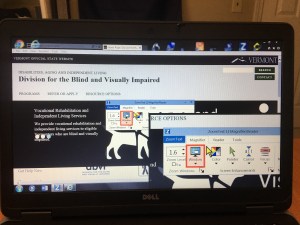
Overlay A magnification window approximately one forth the size of the entire screen sits on top of the screen.
 Image of laptop running Zoomtext 11 in overlay window mode
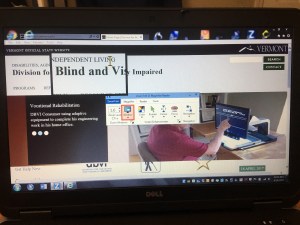
Lens  A magnification window that follows the cursor.
 Image of laptop running Zoomtext 11 in lens window mode
Line  A line of magnification that stretches horizontally across the screen.
 Image of laptop running Zoomtext 11 in line window mode
Docked  The screen is split into two vertical sections, one with no magnification and the other with magnification.
 Image of laptop running Zoomtext 11 in docked window mode

Color Enhancements

Color enhancements change the colors you see on screen. Use this feature to change background and font colors. These changes will also be applied to everything on screen, including images and video. Color enhancements improve screen clarity for easier viewing and reduced eyestrain.
ZoomText 11 allows users to choose from preset color enhancement schemes or create custom schemes. The preset schemes include:
Invert Brightness  Image of laptop running ZoomText 11 with Invert Brightness enabled
Reverse Video  Image of laptop running ZoomText 11 with Reverse Video enabled
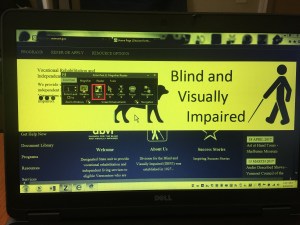
Yellow on Black  Image of laptop running ZoomText 11 with Yellow on Black enabled
Blue Dye  Photo Apr 28, 11 13 21 AM
Black & White  Image of laptop running ZoomText 11 with black and white enabled
White & Black  Image of laptop running ZoomText 11 with white and black enabled
Users also have the option of creating their own color enhancement scheme. Go to the Color Enhancements split button and select the bottom half of the control. This will open a dropdown menu with Settings. Settings will open the Enhancements window in the Color tab. Under Color Enhancement select Custom and the Custom Settings portion of the menu will become editable.
Users can change effects (including brightness and color inversion) and adjust brightness and contrast. Users can also choose how the color enhancements are applied to the screen – they can choose to apply onto to the zoom window, only to the background, or have the enhancements applied to all parts of the screen.
ZoomText 11 allows users to enable and disable color enhancements using the standard keyboard and the ZoomText Keyboard Software
Standard Keyboard – toggle keyboard enhancements on and off Caps Lock + C
ZoomText Keyboard Software – toggle keyboard enhancements on and off F3

Pointer Enhancements

What is the pointer? The pointer is the what most people think of as the mouse. It is the “mouse pointer”.
The pointer is typically an arrow but will take on different shapes depending on what the context it is in. For example, you might see your cursor turn into a hand icon or an I-beam.
ZoomText has several preset schemes for the pointer for users to choose from. Users can also create their own pointer enhancement scheme by selecting the bottom half of the Pointer split button and then selecting Settings from the drop down menu. This will launch the Enhancements menu in the Pointer tab. Under Pointer Enhancements, selecting Custom will enable the Custom Settings section of the tab.
Users can choose to enable or disable ZoomText smooth pointers. This feature prevents pointers from starting to look pixelated as magnification is increased. Users can also choose the size of their mouse pointer, from standard to extra large. The color of the pointer can also be customized here.
Users can also choose to enable a pointer locator in this section. Pointer locators help users locate the pointer on the screen by adding a circle or crosshairs. Users can customize the locator’s thickness, color, and transparency. Users can also control when the locator is displayed. Options including: always, when pointer is stationary, when pointer is moving, or when modifier key (Shift, Alt, Ctrl, or Win) is pressed.
Enable/ Disable Pointer Enhancements Caps Lock + P

Cursor Enhancements

What is the cursor? The cursor refers to the insertion point in text. Say you open up a Microsoft Word document, you click into the document and you’ll see a cursor appear. With standard settings, the cursor is typically simply a blinking horizontal line.
ZoomText has several preset schemes for the cursor for users to choose from. Users can also create their own cursor enhancement scheme by selecting the bottom half of the Cursor split button and then selecting Settings from the drop down menu. This will launch the Enhancements menu in the Cursor tab. Under Cursor Enhancements, selecting Custom will enable the Custom Settings section of the tab.
Under custom settings, users can select the type of cursor locator of wedges, circle, or frame. They can also choose the size, color, and transparency of the cursor locator. Users can also control when the locator is displayed. Options including: always, when cursor is stationary, when cursor is moving, or when modifier key (Shift, Alt, Ctrl, or Win) is pressed.
Enable/ Disable Cursor Enhancements Caps Lock + R

Focus Enhancements

What is focus? You can think of focus as whatever you’ve clicked onto. On your desktop, if you single right-click on an icon, that icon now has focus. Similarly, if you’re in a web browser and you click on the address bar, the address bar has focus.
ZoomText has several preset schemes for the focus for users to choose from. Users can also create their own focus enhancement scheme by selecting the bottom half of the Focus split button and then selecting Settings from the drop down menu. This will launch the Enhancements menu in the Focus tab. Under Focus Enhancements, selecting Custom will enable the Custom Settings section of the tab.
Under custom settings, users can select the type of focus locator from block, underline, or frame. They can also choose the thickness, margin, color, and transparency of the focus locator. Users can also control when the locator is displayed. Options including: continuously, briefly, or when modifier key (Shift or Ctrl) is pressed.
Enable/ Disable Focus Enhancements Caps Lock + F

Navigation

The Navigation button displays a menu that opens the Navigation Settings dialog where you can adjust how ZoomText will scroll the zoom window to keep moving objects in view, including the mouse pointer, text cursor, keyboard focus and other objects that appear and move about the screen. By default, the zoom is set to follow the mouse pointer. However, you can also move the zoom around the screen via the keyboard.
Scroll Up Caps Lock + Shift + Up Arrow
Scroll Down Caps Lock + Shift + Down Arrow
Scroll Left Caps Lock + Shift + Left Arrow
Scroll Right Caps Lock + Shift + Right Arrow

Helpful Windows Key Commands

There are a number of keyboard commands for Windows that can be useful for people using magnification software. Below is a list of the most common key commands, but you can find more on the Windows Support Keyboard Shortcuts page.
Opens the Quick Launch Toolbar with focus on the Windows Search bar Windows Button (Win)
Minimize all open applications. You can press the key combination to restore the minimized applications. Win + D
Put focus on the Windows Taskbar. Pressing the key combination again will allow you to cycle focus between open and pinned applications. Win + T
When focus is on the desktop, pressing this key combination will cycle focus between the Start Menu, Desktop, Taskbar, and Notification Area. Tab / Shift + Tab
Move between open applications. Hold Alt and move through applications by pressing tab or the arrow keys. Alt + Tab
Type Windows-Left Arrow and the active application will shift to fill
the left half of the screen. Windows-Right sends it to the right, Windows-Down places it in the middle of the screen, and Windows-Up maximizes. It’s a really handy option when you want multiple application windows neatly arranged.
Win + Arrow Keys
Exits the current application. Alt + F4
Opens up a search within the active application. Ctrl + F
Selects all text in the current application. Ctrl + A
Cuts the highlighted content and puts it on the clipboard. Ctrl + X
Copies the highlighted content and puts it on the clipboard. Ctrl + C
Pastes content from clipboard. Ctrl + V
Opens the context menu. Shift + F10

Need Help Remembering ZoomText Key Commands?

Feel free to bookmark or print the ZoomText 11 Key Commands Quick Reference document.

VoiceOver for iOS Topic: Using Uber with Siri on iOS

What do I Need?

For starters, you’ll need to download the Uber app and have the app set up with your account and financial information.

As well, you’ll need to enable Siri to work with Uber. In the Settings app, go to Siri. The Siri section, go down to App Support. Provided you have Uber installed, you should find Uber in the list with a radio button to activate it.

What do I Say?

The keyword for Uber seems to be “ride”. So, you can simply tell Siri, “Get me a ride.” However, this will be similar to creating a calendar appointment by saying “Schedule a meeting” – Siri will need to ask us a series of follow-up questions. We can instead build a number of things into our ride statements.

First off, we want to tell Siri where we are going and where we’d like to be picked up. Here is an example:

First off, we want to tell Siri where we are going and where we’d like to be picked up. Here is an example:

This statement has a lot more info but will still result in follow-up questions. What else does Siri want to know? First off, Siri will make sure you want to use Uber. How can we add this into our original statement?

“Get me an Uber from my location to downtown Burlington.”

We’re still not quite done. Next, she’ll want to know if you want UberX or UberXL service.

“Get me an UberX from my location to downtown Burlington.”

Note on Locations

In the Uber app, we can save a list of locations – such as, home, work, friend’s house, etc. However, when we ask Siri to get an Uber home – Siri looks for address information in the iOS Contacts app, not the Uber app. So, keep this mind when using Siri to schedule your Uber – you might need to add your home address, etc.

VoiceOver for iOS Topic: Composing Facebook Posts

Steps for Creating Facebook Page Posts

The following are the quick steps for composing a Facebook Page post via the Facebook iOS app using VoiceOver.

Step 1 – Open the Facebook app.

Step 2 – Go to the “More Button” located on the bottom navigation bar in the lower right-hand corner of the screen.

Step 3 – Find your Facebook Page in the More Menu – it will be listed as whatever you named it.

Step 4 – On your Facebook page, find the Publish Button.

Step 5 – Find the “Right Something… Text Field and compose your post.

Step 6 – Move your focus to back up the page to the Continue Button.

Step 7 – Locate the Publish Button which will be at the top of the screen on the right side. You will not be able to flick to this control, so you will need to find it by searching the screen with your finger.

Important Gestures for Creating Posts

Gesture Function
Single Finger Drag Move your focus to whatever part of the screen your finger touches.
Single Finger Flick to the Left and Right Move your focus to the previous and next item.
Single Finger Double Tap Activate an item.
Two Finger Double Tap When using the onscreen keyboard, this gesture will start and stop dictation.
Three Finger Flick Up and Down (Scroll) Vertically scroll the page or menu.

Audio Notes on this Lesson

JAWS Topic: Searching for Books on Audible.com

Audible Access

Audible does offer a more accessible version of their homepage which you can find by navigating to http://www.audible.com/access. This page has all the images, ads, and visual stylings removed which makes it easier for screen reader users. Unfortunately, this is a page and not an entire site – when you navigate away from this page, you’ll encounter the standard Audible.com pages.

Searching for Books

Move your focus to the Search for an audiobook field (titled “search edit”). Type in the information you have about your book – the title or author or whatever you might have. Press enter.

The returned search results are unfortunately not styled as headings, so we can’t use our typical strategy of navigating in that way. Instead, we can use the heading list to find our search as heading and move to it. For example, if I search “Assistive Technology”, I will find a heading on this page titled “Assistive Technology”. From there, you can use the quick key navigation of moving to unvisited links to move through the different returned books (you may need to use the visited link key if you’ve been on any of these pages in the past). This won’t move you simply by title, but instead you’ll hear the book cover graphic (which is usually just the title), the title, then the author, then the narrator, then you may hear “Whispersync for Voice-ready”, add to cart, and finally add to wish list.

When you’ve located the book you’d like, follow the link on the title or on the graphic. Here you can use the form field list to find the “Add to Cart” button to purchase this book.

Keyboard Commands

Function Command
List of Headings Insert + F6
Move by Heading H and Shift + H
List of Links Insert + F7
Move by Unvisited Link U and Shift + U
Move by Visited Link V and Shift + V
List of Form Fields Insert + F5
Move by Form Field F and Shift + F

JAWS Topic: Creating Bullet Points in Office

Option 1 – The Ribbon

Press Alt + H, then U to open the Bullet Library dialog. Use tab to move through the options and press space to make a selection.

Option 2 – Keyboard Shortcut

Use Ctrl + Shift + L. This should give you a default bullet point for your current style. This sometimes does not work…

Option 3 – Use the ASCII Symbol

This one is annoying because we need to turn numlock on. Once you’ve done that, press Alt + 0149.

Beginning Microsoft PowerPoint with JAWS

PowerPoint can be a challenging program to use with JAWS. If your intent is to read PowerPoint documents, I suggest you simply export the presentation to PDF.

Export to PDF

  1. Save the PowerPoint file on your computer. To be able to export to PDF, the PowerPoint needs to be saved locally on your computer first.
  2. Use Alt + F to open the File Menu.
  3. Use the up and down arrows to navigate the file menu to Export and then press space bar.
  4. Press space bar on Create PDF/ XPS Document tab.
  5. Press space bar on Create PDF/ XPS Document button.

Since PowerPoint is part of the Microsoft Office suite of applications, we’ll find similar layout and interface features as programs like Word and Excel.

Basic Controls

New Presentation Ctrl + N
Open Ctrl + O
Print Ctrl + P
Save Ctrl + S

Ribbon Controls

Move to Ribbon Alt
Move between Ribbon tabs Left and Right Arrow Keys
Move through Ribbon tab controls Tab and Shift + Tab

Navigation

Move between interface sections (Upper Ribbon, Notes Page Pane, Slide Thumbnails Tab, Slide Area, and Status Bar Toolbar) F6 and Shift + F6

Slide Thumbnails Tab

Move through presentation slides Up and Down Arrow Keys
Create a new slide Enter
Move to current slide from Thumbnail Tab
Open context menu for slide Shift + F10 or Context Key

Changing Theme Layout

When you create a new slide, you might want to change the slide layout. You’ll do this by opening the contact menu on the slide thumbnail. Then select Layout from the menu. This will open the layout menu. Use tab to move through the different slide layout options. Press enter on the slide layout you’d like to apply.

Slide Area

Move through Objects on the slide Tab and Shift + Tab
Edit slide Object Enter
Delete slide Object Delete
Move to a different slide Page Up and Page Down
Move back to Slide Thumbnails Tab Escape

Slide Object

Open Font Menu Ctrl + Shift + F
Stop editing slide Object Escape
Bold Ctrl + B
Italacize Ctrl + I
Underline Ctrl + U
Copy Ctrl + C
Cut Ctrl + X
Paste Ctrl + V
Undo Ctrl + Z
Redo Ctrl + Y
Say Font Insert + F6

Adding Images to Slides

The process for inserting an image into a PowerPoint slide is very similar for inserting an image into Microsoft Word. However, there are some special considerations.

  1. Press Alt to move into the Ribbon.
  2. Switch to the Insert tab.
  3. Move through the Insert tab until you find the Images Group Box, Pictures… button.
  4. This will open the File Explorer Open dialog. Find the image you’d like to insert.

Adding an image to PowerPoint works best when you insert it into a slide with a picture placeholder. You’ll find slide themes with image placeholders in the theme options for the slide.

Need More Help?

JAWS has guides on using PowerPoint in JAWS Help. Simply use Insert + J to switch to the JAWS toolbar, then press F1 to open JAWS help. Now, press Alt + S to switch to the search tab and type in “powerpoint” then press enter to do the search. Use tab to move down to the returned Help guides, and use the up and down arrow keys to move through the different guides. Use F6 to move into the selected Help Guide.

Microsoft Support: Get Started Using a Screen Reader with a PowerPoint Presentation

Microsoft Support: Use Keyboard Shortcuts to Create Your Presentation

Using Alexa on the Amazon Echo

What follows is a list of commands that work with Alexa on the Amazon Echo. I took these from an article from CNET titled The complete list of Alexa commands so far, so check that article out if you want the original and keep in mind that this is not an official list created by Amazon.

Time and date

Set an alarm “Alexa, set an alarm for 7 a.m.” or, “Alexa, wake me up at 7 in the morning.”
Set a repeating alarm “Alexa, set a repeating alarm for weekdays at 7 a.m.”
Set a timer “Alexa, set a timer for 15 minutes.”
Set multiple timers “Alexa, set a second timer for 5 minutes.”
Check timer status “Alexa, how much time is left on my timer?”
Ask the time “Alexa, what time is it?”
Ask the date “Alexa, what’s the date?”
Ask when the next alarm is “Alexa, when’s my next alarm?”
Cancel an alarm “Alexa, cancel my alarm for 2 p.m.”
Snooze alarm “Alexa, snooze.”
Check dates “Alexa, when is [holiday] this year?”

To-do and shopping lists

Add task to to-do list “Alexa, add ‘go to the grocery store’ to my to-do list” or, “Alexa, I need to make an appointment with the doctor.”
Create a new to-do item “Alexa, create a to-do.”
Check calendar events “Alexa, what’s on my calendar for tomorrow?”
Add an event to a calendar “Alexa, add [event] to my calendar for [day] at [time]” or, “Alexa, add an event to my calendar.”
Create a shopping list “Alexa, add eggs to my shopping list” or, “Alexa, I need to buy laundry detergent.”
Check your shopping list “Alexa, what’s on my shopping list?”

Media controls

Play music “Alexa, play some music.”
Queue specific song or artist “Alexa, play music by [artist].”
Play a song based on context “Alexa, play the latest Avett Brothers album” or, “Alexa, play that song that goes ‘Gotta gotta be down, because I want it all.'”
Play Spotify music “Alexa, play on Spotify.”
Play Pandora station “Alexa, play [artist] station on Pandora.”
Play a radio station “Alexa, play [radio station] on TuneIn.”
Play an audiobook “Alexa, play [title] on Audible,” “Alexa, read [title]” or, “Alexa, play the book, [title].”
Resume the last played audiobook “Alexa, resume my book.”
Skip audiobook chapters “Alexa, next chapter” or, “Alexa, previous chapter.”
Listen to Alexa read you a Kindle book “Alexa, read me my Kindle book.”
Set a sleep timer “Alexa set a sleep timer for 45 minutes” or, “Alexa, stop playing in 45 minutes.”
Song information “Alexa, what’s playing?”
Music controls “Alexa, play” or, “Alexa, next.”
Restart song “Alexa, restart.”
Add a song to your Prime Music library “Alexa, add this song.”
Like or dislike a song on Pandora and iHeartRadio “Alexa, I like this song” or, “Alexa, thumbs down.”
Start Amazon Music Unlimited trial “Alexa, start my free trial of Amazon Music Unlimited.”

News and weather

Ask for your Flash Briefing “Alexa, what’s my Flash Briefing?”
Check headlines “Alexa, what’s in the news?”
Check weather “Alexa, what’s the weather like?” or, “Alexa, will it rain today?” or even “Alexa, will I need an umbrella today?”
Get a weather forecast “Alexa, what’s the weather going to be like this weekend?
Get traffic information “Alexa, what’s my commute look like?” or, “Alexa, what’s traffic like?”

Entertainment and food

Find movies in nearby theaters “Alexa, what movies are playing?” or, “Alexa, what action movies are playing tonight?”
Get information on movies playing “Alexa, tell me about the movie [title].”
Discover nearby restaurants “Alexa, find me a nearby pizza restaurant.”
Get operating hours or a phone number for local businesses “Alexa, find the address for Bank of America” or, “Alexa, find business hours for Harris Teeter.”
Get IMDb rating “Alexa, what is the IMDb rating for [movie or TV show]?”
Get casting for a movie or show “Alexa, who plays in [movie or TV show]?”
Find out who an actor is “Alexa, who plays [character] in [movie or TV show]?”
Find an actor’s latest work “Alexa, what is [actor]’s latest movie?”
Find out who sings a particular song “Who sings the song [title]?”
Get the names of band members “Who is in the band [name]?”
Get album information “What year did [band] release [song or album]?”
Find popular music from an artist “Alexa, what’s popular from [artist]?”
Sample music from an artist “Alexa, sample songs by [artist].”
Find a particular album or song “Alexa, find [song or album] by [artist].”

Math

Convert units “Alexa, how many [units] are in [units]?”
Convert units “Alexa, how many [units] are in 2 [units]?”
Basic math “Alexa, what’s 5 plus 7?” or, “Alexa, what’s 56 times 33?”
Advanced math “Alexa, 70 factorial.” (Warning: Alexa will list numbers you didn’t know existed for about a minute.)

Definitions and spelling

Get the definition of a word “Alexa, what’s the definition of [word]?”
Get the spelling of a word “Alexa, how do you spell [word]?”

Sports

Check the results of a finished game “Alexa, what was the score of the [team] game?”
Ask if a team won “Alexa, did the [team] win?”
Ask when the next game is scheduled “Alexa, when do the [team] play next?”
Find out the results of your favorite teams “Alexa, give me my Sports Update.”
Get Fantasy Football update with the Yahoo Fantasy Football skill “Alexa, ask Yahoo Fantasy Football for a score update” or, “Alexa, ask Yahoo Fantasy Football if Colin Kaepernick is playing this week.”

Purchasing

Reorder essentials from Amazon “Alexa, buy more deodorant” or, “Alexa, reorder deodorant.”
Track packages from Amazon “Alexa, where’s my stuff?” or, “Alexa, track my order.”
Order an Amazon Alexa device “Alexa, order an Echo,” “Alexa, order an Echo Dot,” or, “Alexa, order an Amazon Tap.”
Add an item to your cart “Alexa, add garbage bags to my cart.”
Order an Uber or Lyft with their skills “Alexa, ask Uber to request a ride” or, “Alexa, ask Lyft for a ride.”
While listening to music in Amazon Music “Alexa, buy this song” or, “Alexa, buy this album.”
Find new music to purchase “Alexa, shop for new music by [artist].”
Purchase a song or album from an artist “Alexa, buy [song or album] by [artist].”
Ask about deals “Alexa, what are your deals?”

Smart home

Alexa can integrate with loads of smart home platforms, such as SmartThings, Wink, Insteon, Lutron, Belkin WeMo, Philips Hue and many more. Some require you to enable skills, some don’t. Here are some of the varieties of commands you can use, although there are dozens more.

Turn lights on or off “Alexa, turn on the lights” or, “Alexa, turn off the living room lights.”
Dim the lights “Alexa, dim the lights to 50 percent.”
Adjust temperature “Alexa, raise the temperature 1 degree.”
Set temperature “Alexa, set the temperature to 72.”
Lock your doors “Alexa, lock my back door.”
Close your garage door “Alexa, ask Garageio to close my garage.”
Discover smart home devices “Alexa, discover my devices.”
Pair a Bluetooth device “Alexa, pair” or, “Alexa, Bluetooth.”
Connect to a Bluetooth device “Alexa, connect to my phone.”
Disconnect from a a Bluetooth device “Alexa, disconnect from my phone.”
Use IFTTT recipes “Alexa, trigger [IFTTT recipe].”
Activate a scene (limited to Control4, Insteon, Lutron Caséta Wireless, Philips Hue, SmartThings and Wink) “Alexa, turn on Movie Time” or, “Alexa, turn on Bedtime.”
Control GE appliances with the Geneva skill “Alexa, tell Geneva to preheat my oven to 400 degrees” or, “Alexa, ask Geneva is my laundry is dry.”
Locate a lost phone with the TrackR Lost My Phone skill “Alexa, ask TrackR to find my phone.”
Control the TV via Harmony hub “Alexa, turn on the TV” or, “Alexa, turn on Netflix.”

Profiles and user accounts

Switch profiles “Alexa, switch accounts.”
Check which profile is active “Alexa, which profile is this?”

Skills

Enable skills “Alexa, enable Jeopardy!”
Disable skills “Alexa, disable Domino’s.”

Search

Get Wikipedia information “Alexa, Wikipedia [subject].”
Tell Alexa to continue reading a Wikipedia entry “Alexa, tell me more.”
Ask a general question “Alexa, how tall is [person or object’s name]?”
Ask a general question “Alexa, how many people live in America?”
Get a “Game of Thrones” quote “Alexa, give me a ‘Game of Thrones’ quote.”

Easter eggs

Alexa comes chock-full of Easter eggs and jokes — the list is long. We covered the strange world of Alexa Easter eggs recently, noting some of the more popular or prominent commands that prompt a snarky or humorous response.

Alexa, good morning.

Alexa, tell me a joke.

Alexa, tell me a fact.

Alexa, beam me up.

Alexa, set phasers to kill.

Alexa. Tea. Earl Grey. Hot.

Alexa, my name is Inigo Montoya.

Alexa, I want the truth.

Alexa, party on, Wayne.

Alexa, show me the money.

Alexa, what’s the first (or second) rule of Fight Club?

Alexa, surely you can’t be serious.

Alexa, are you SkyNet?

Alexa, party time!

Alexa, open the pod bay doors.

Alexa, when am I going to die?

Alexa, what is your quest?

Alexa, nice to see you, to see you…

Alexa, don’t mention the war.

Alexa, this is a dead parrot.

Alexa, what is your cunning plan?

Further Research and Resources

Amazon eBook: Amazon Echo: Learn Amazon Echo In A DAY!

AFB Audio Tutorial: Learning to Use the Amazon Echo with the Mystic Access Audio Tutorial

JAWS Topic: Creating Notes in Outlook

The Notes Tab

The Notes tab may not be a feature in Outlook that everyone is familiar with, but it can be helpful in creating and organizing simple text notes. As we know, Outlook is organized into different tabs or sections, including: Mail, Calendar, Contacts, and Tasks. Notes is the 5th tab of Outlook. Users can move to the Notes tab by pressing Ctrl + 5.

Switch to Notes Tab Ctrl + 5

Creating Notes

Notes are simple text documents. That means they only include characters, spaces, and line breaks. We can’t change the font, the font color, or the font style – that’s right, you can’t even make the font bold, italicized, or underlined! Further, you can’t do anything crazy like add pictures or video.

We can create new notes with CTRL + N. You don’t need to name notes or save them. When you are done with a note, simply press Escape to close it. The name of your note will be whatever you have written in the note up to the line break (or the character maximum which I believe will be 128). Notes are also given a time and date stamp when they are created.

Create a new note Ctrl + N
Close a note Escape

Organizing Notes

Once you’ve created more than one note, you’ll be able to move through your notes in the Notes tab with the left and right arrow keys. You can open existing notes by pressing enter. You can delete notes by pressing delete on the note in the Notes tab.

Move through existing notes Left and Right Arrow Keys
Open a note Enter
Delete a note Delete
Switch between open notes Alt + Tab

Users can forward notes as email attachments by simply using the Ctrl + F command on an open note or in the Notes Tab. You can also move notes into folders in Outlook. Press Alt to move into the ribbon. In the Home tab, you’ll find the Move Submenu which will allow you to move notes to recent folders, any other folder, or you can copy a note to a folder (this will keep a copy of the notes in your Notes folder as well as adding a copy to the destination of your choosing). Typical Outlook folders only hold mail items, so Outlook will prompt you to add the note as an attachment to an email if you want to move a note to a folder of this type. You can also create special note folders using the Create New Folder dialog.

Forward a note Ctrl + F
Move into Ribbon Alt

Web Browsing with VoiceOver for iOS

The smallest movement we can do when working with VoiceOver on the web is to move by item. This is what happens when we use the single finger flick left and right. In the world of web browsing with JAWS, you can think of the single finger flick left or right as being equivalent to using the up and down arrow keys on a webpage with JAWS.

Function Gesture
Move down the page Single finger flick to the right
Move up the page Single finger flick to the left


The Item Chooser

The item chooser allows us to pull up lists of headings, links, form fields and more.

Function Gesture
Open the item chooser Two finger triple tap
Scroll to different lists in the item chooser Three finger swipe to the right or left
Hear additional actions for items in the item choose Single finger flick up or down
Move to an item Single finger double tap
Close item chooser Single finger double tap on an item or perform the two finger scrub


The Rotor

The rotor will allow us to move up and down the page by heading, link, form field, and more. To perform the rotor gesture simply put two fingers on the screen of the device about one inch apart and rotate those fingers clockwise or counter-clockwise while keeping contact with the device. Continue this motion to turn to hear all rotor options available. On a webpage, we would expect to hear options such as: Headings, Links, Form Controls, Edit, etc.

Function Gesture
Change rotor setting Perform the rotor gesture
Interact with rotor setting Single finger flick up or down

Using the Touchpad Commander in VoiceOver for macOS

This guide borrows heavily from Apple’s VoiceOver Getting Started guide, so I utilizing that resource as needed.

Basic Settings

Enable the Trackpad Commander and VoiceOver gestures VO-two-finger rotate clockwise
Disable the Trackpad Commander and VoiceOver gestures VO-two-finger rotate counterclockwise
Turn the screen curtain on or off Three-finger triple-tap
Mute or unmute VoiceOver Three-finger double-tap

Navigation

Force the VoiceOver cursor into a horizontal or vertical line when you drag a finger across the trackpad Hold down the Shift key and drag a finger horizontally or vertically
Move the VoiceOver cursor to the next item Flick right
Move the VoiceOver cursor to the previous item Flick left
Move content or the scroll bar (depending on the Trackpad Commander setting) Three-finger flick in any direction
Go to the Dock Two-finger double-tap near the bottom of the trackpad
Go to the menu bar Two-finger double-tap near the top of the trackpad
Open the Application Chooser Two-finger double-tap on the left side of the trackpad
Open the Window Chooser Two-finger double-tap on the right side of the trackpad
Jump to another area of the current app Press Control while touching a finger on the trackpad

Interaction

Speak the item in the VoiceOver cursor or, if there isn’t an item, play a sound effect to indicate a blank area Touch (includes tap or dragging)
Select an item Double-tap anywhere. You can also split-tap (touch one finger, then tap with a second finger).
Start interacting with the item in the VoiceOver cursor Two-finger flick right
Stop interacting with the item in the VoiceOver cursor Two-finger flick left
Scroll one page down or up Three-finger flick up or down
Escape (close a menu without making a selection) Two-finger scrub back and forth
Increase or decrease the value of a slider, splitter, stepper, or other control Flick up (increase) or flick down (decrease)

Text

Read the current page, starting at the top Two-finger flick up
Read from the VoiceOver cursor to the end of the current page Two-finger flick down
Read the current scroll page Three-finger tap
Pause or resume speaking Two-finger tap
Describe what’s in the VoiceOver cursor Triple-tap
Change how VoiceOver reads text (by word, line, sentence, or paragraph) Press Command while touching a finger on the trackpad

Rotor

Change the rotor settings Two-finger rotate
Move to the previous item based on the rotor setting Flick up
Move to the next item based on the rotor setting Flick down